

I 've seen a lot of bloggers follow the same pattern: they set up a Facebook page, post a few times so it doesn’t look empty, drop the link in their bio, and then wait for traffic that never shows up.
And it’s usually not because Facebook doesn’t work. It’s because your site and the Facebook page never really end up working together. People who visit your site don’t think to follow you, and people who follow you on Facebook don’t always make it back to your WordPress blog.
Once you start connecting the two properly, things change pretty quickly. Your Facebook content starts sending people back to your site, and your site starts turning casual visitors into followers who actually stick around.
These are the 10 best Facebook plugins I’ve found that help with that — whether it’s showing your Facebook feed on your site, making it easier to share posts, or running things like contests that get people engaging beyond just a like or follow.
Quick Picks: Best WordPress Facebook Plugins for Bloggers
If you don’t have time to read the full reviews, check out this handy comparison table to quickly find the right Facebook plugin for your blog:
| # | Plugin | Best For | Starting Price | Free Version? |
|---|---|---|---|---|
| 1 | Smash Balloon Facebook Feed | Displaying Facebook feeds on your site | $49/yr | ✅ |
| 2 | WPChat | Facebook Messenger chat widget for WordPress | $49/yr | ✅ |
| 3 | RafflePress | Viral Facebook contests to grow followers | $299 one-time | ✅ |
| 4 | Smash Balloon Reviews Feed | Showcasing Facebook reviews anywhere | $49/yr | ✅ |
| 5 | Social Snap | Social sharing with click analytics | $39/yr | ✅ |
| 6 | Nextend Social Login | Facebook login for WordPress sites | Free | ✅ |
| 7 | Pixel Cat | Adding the Facebook Pixel for tracking | Free | ✅ |
| 8 | Sassy Social Share | Completely free social sharing buttons | Free | ✅ |
| 9 | Revive Social | Automatically sharing WordPress posts to Facebook | $99/yr | ✅ |
| 10 | Hootsuite | Professional Facebook management and scheduling | $99/mo | ❌ |
Why Use Facebook Plugins on Your WordPress Blog?
Facebook is still one of the easiest ways to get your content in front of more people. The problem is, most WordPress blogs and Facebook pages don’t really work together — they just sit in two separate places doing their own thing.
Facebook plugins fix that by connecting them in simple, practical ways that actually help your blog grow without adding a lot of extra work.
Here are a few benefits to using Facebooks plugin on your WordPress blog:
- Free marketing from your readers. Facebook share button plugins make it easy for people to share your posts with their friends. When they do, they’re basically promoting your blog for you, without you doing anything extra.
- More engagement on both sides. Connecting your blog with your Facebook page or group gets people moving between the two. That usually means more likes, comments, and conversations, instead of attention being stuck in just one place.
- Less time spent creating content. Some plugins let you automatically share posts between Facebook and your blog. You publish once, and it shows up in both places depending on how you set it up.
- Boost your SEO. Embedding Facebook feeds or posts adds fresh content, keywords, and activity to your pages, which can help search visibility over time.
If you’re already spending time on your blog and your Facebook page, these plugins just make that effort go a bit further. They help people share your posts more easily, keep your content active without extra work, and give you a few simple ways to get more eyes on your content.
How I Test & Review WordPress Facebook Plugins
I’ve tested a lot of WordPress plugins over the years as a blogger, but Facebook plugins are one of the more varied categories — a feed embed, a chat widget, a giveaway tool, and a sharing button don’t have much in common besides the fact that they all involve Facebook.
So I tested each one for what it actually does, rather than putting them all through the same checklist.
For each plugin, I set it up from scratch and tried to use it the way a blogger would, including any Facebook account connections required along the way.
I paid attention to where things got confusing, how much you can actually do with the free version, if they slow down your site, and whether the plugin keeps working reliably over time.
By the end I had a pretty clear picture of which plugin does what best and which one is right for your situation. That’s what I’ve tried to make easy in the reviews below.
Now that you know why you should install one, here are my personal picks of the 10 best Facebook plugins to install on your WordPress blog.
1. Smash Balloon Facebook Feed: Best Facebook Feed Plugin for WordPress
- Live Facebook feed on any page, post, or widget area
- Visual feed customizer with a real-time preview, no coding required
- Photos, videos, albums, and events display
- Comment counts, likes, shares, and reactions shown per post
- SEO-friendly feed content that search engines can actually read
- Like Box widget with your cover photo, profile picture, bio, and follower count
- Built-in caching so feeds load fast without overloading the Facebook API
- Unlimited feeds from unlimited Facebook pages
- And more…
Smash Balloon Facebook Feed Pro takes the posts from your Facebook page and shows them right on your WordPress blog, in a feed that updates automatically on its own.
That means, a visitor reading your latest article can see you’re active on Facebook, scroll through what you’ve shared lately, and follow you without ever leaving your site.
Setting it up is easier than you’d expect for something that connects to Facebook. There’s no developer account to create and no code to paste. You simply connect your Facebook account, choose the Facebook page you want to pull from, and your feed is live.
I love that it even borrows your theme’s fonts and colors automatically, so it looks like part of your blog right from the start. Here’s an example of a Facebook group feed embedded in WordPress:
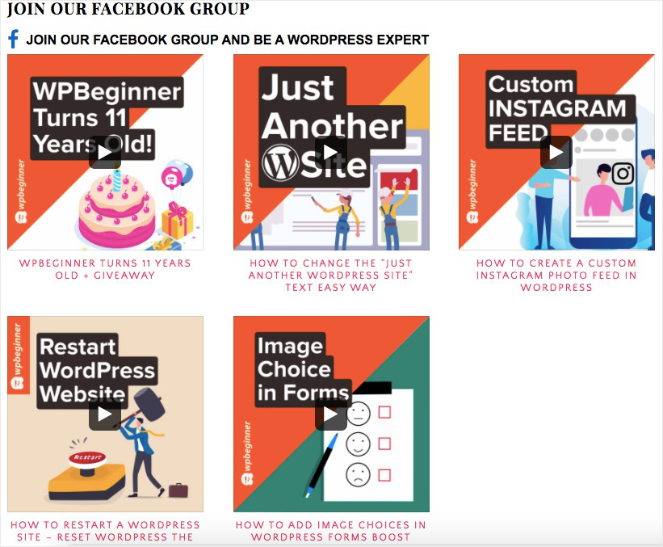
If you want to change how it looks, the visual customizer lets you do it without touching anything technical. You can switch between multiple pre-made layouts, decide whether to show the post text, photos, and dates, and watch the changes happen live as you click.
It also shows photos, videos, albums, and events, with the likes, comments, and reactions sitting under each post. That last part builds social proof and trust, because a new reader who sees real people engaging with your posts is far more likely to follow you than one looking at an empty “Find us on Facebook” button.
In addition, here’s an important feature I found that sets it apart from most feed plugins, and it matters for bloggers: A lot of them load your posts inside an iframe, which Google can’t read at all.
However, Smash Balloon puts the actual text of your posts on the page instead, so the keywords you write on Facebook can help your blog turn up in search results, rather than being invisible to it.
To learn more about my experience with this plugin, check out my detailed Smash Balloon review.
| Pros of Smash Balloon Facebook Feed Pro | Cons of Smash Balloon Facebook Feed Pro |
|---|---|
| ✅ Easily display Facebook posts anywhere on your blog | ❌ Free version is limited to text posts |
| ✅ Feed updates automatically, so your blog always has fresh content | ❌ Features like filtering posts require a higher paid plan |
| ✅ Feed content is indexed by search engines | |
| ✅ Visual customizer with a real-time preview | |
| ✅ Unlimited feeds from different Facebook pages | |
| ✅ 200,000+ active installs and a 4.7-star rating |
Pricing: Starts at $49/year. There’s also a free version of the plugin you can download.
Why I Recommend Smash Balloon Facebook Feed Pro: Smash Balloon is best for bloggers who want their Facebook activity showing up on their site without touching any code. If you’re active on Facebook and your visitors have no idea, this is the simplest fix on the list, and the free version is a solid way to start before you upgrade for photos and video.
2. WPChat: Best Facebook Messenger Chat Widget for WordPress
- Facebook Messenger, WhatsApp, Telegram, and Instagram in one floating widget
- Guided setup wizard that gets the widget live in under five minutes
- Built-in FAQ system so visitors can find answers before they message you
- AI-powered FAQ search that understands what people are asking
- Chat funnels that qualify leads through a guided conversation
- Analytics dashboard for interactions, conversion rates, and peak hours
- Page targeting to show or hide the widget by post, category, or tag
- And more…
WPChat makes my list of the best Facebook plugins because it lets your visitors message you through Facebook Messenger right from your blog, instead of hunting down your Facebook page or filling out a contact form.
A reader taps the chat button, types their question, and it lands in your Messenger inbox like any other message, so you can reply from your phone whenever you get a moment.
It’s not limited to Facebook Messenger, either. The same floating button can offer WhatsApp, Telegram, and Instagram, and your visitor picks whichever one they already use.
For a blogger, I think that’s often a much easier ask than a contact form. Plenty of readers who’d never type out their name and email will happily fire off a quick Messenger message, so you end up hearing from people you otherwise never would have.
When I tested it, it was easy to get it going from the start. A short setup wizard walks you through connecting your Messenger link, choosing where the button sits, and picking a color to match your blog. There’s no code involved, and you’ll have it live in a few minutes.
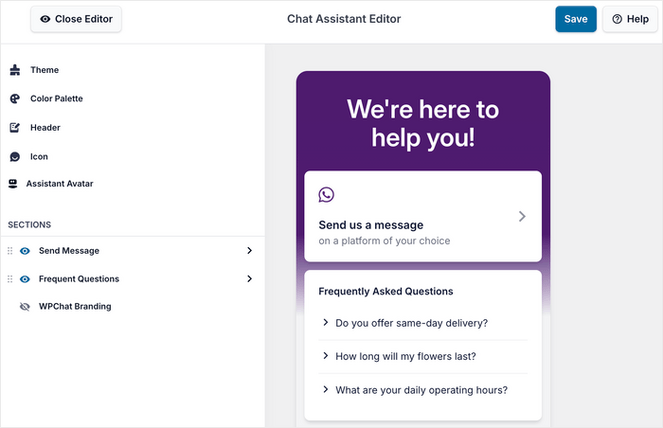
I think the built-in FAQ feature is super helpful too. You add the questions readers ask you over and over, like “do you ship internationally?” or “how do I log in to the course?”, right inside the chat window.
Visitors get the answer on the spot, which saves you from typing the same reply ten times a week and saves them from waiting around for you to be at your desk.
One last thing worth knowing is that the widget loads in the background, so it won’t slow your blog down. That matters more than it sounds, because a slow page sends readers, and Google, elsewhere before they even see your post.
| Pros of WPChat | Cons of WPChat |
|---|---|
| ✅ Facebook Messenger, WhatsApp, Telegram, and Instagram live chat widget for WordPress | ❌ Free version limited to one agent and 10 FAQs |
| ✅ Conversations happen through apps visitors already use | ❌ Chat funnels and analytics require a paid plan |
| ✅ Built-in FAQ system with smart search | |
| ✅ Loads asynchronously, so it keeps your page speed fast | |
| ✅ Flat annual fee instead of monthly per-agent pricing | |
| ✅ GDPR compliant, with no visitor data stored |
Pricing: Starts at $49/year. There’s also a free version of WPChat that you can use to get started.
Why I Recommend WPChat: WPChat is best for bloggers and small business owners who want to chat with visitors through Facebook Messenger right on their site. Your visitors reach out using the messaging apps they already have on their phones, so the conversation feels natural to them, and you can set the whole thing up inside your WordPress dashboard in a few minutes.
3. RafflePress: Best for Growing Your Facebook Following with Giveaways
- Drag-and-drop giveaway builder with no code required
- 30+ bonus entry actions, like follow on Facebook and share on Facebook
- Pre-built templates for goals like growing followers or building an email list
- Dedicated giveaway landing pages hosted on your own site
- Integrations with Mailchimp, ConvertKit, ActiveCampaign, and more
- Analytics for entries, traffic sources, and top-performing actions
- And more…
RafflePress is a giveaway plugin built around growing your audience, and it’s especially good at growing a Facebook following, which is why it makes my list.
You run a contest on your blog, and the things people do to enter, like following your Facebook page or sharing the giveaway, are exactly the actions that earn you more reach on Facebook.
The way it works is you hand out extra entries for each action someone takes. Following your page might be worth five entries, sharing the giveaway another five, and so on.
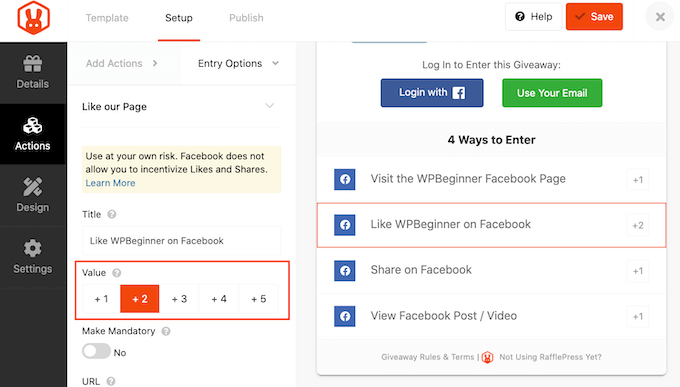
Because sharing is one of those actions, every person who enters is putting your contest in front of their own friends, which is how a giveaway goes viral instead of just reaching the readers you already have.
Creating a giveaway is easy with the drag-and-drop builder. Plus, RafflePress comes with a “Get More Followers” template that already has the right Facebook actions in place, so you’re really just adding your prize and your dates.
Each giveaway also gets its own page on your site, which makes it much easier to promote. You end up with one clean link to drop into a Facebook post, a Story, or your bio, instead of asking people to scroll through a blog post to find the entry form.
I’d add an email signup as one of the entry actions too. That way a giveaway you’re running to grow your Facebook page doubles as a way to grow your email list, and you finish the contest with both more followers and more subscribers you can reach any time you publish something new.
| Pros of RafflePress | Cons of RafflePress |
|---|---|
| ✅ Drag-and-drop Facebook giveaway builder | ❌ The free version of the plugin is limited |
| ✅ Facebook-specific entry actions: follow, share, visit page | ❌ Pro version is expensive for bloggers that don’t regularly run giveaways and contests |
| ✅ Dedicated landing pages for easy Facebook promotion | |
| ✅ Connects with all the popular email marketing tools | |
| ✅ Also supports giveaways for YouTube, Instagram, Twitch, and more | |
| ✅ Built-in fraud protection for fair contests |
Pricing: There’s a free version of RafflePress you can try out. The Pro version costs $299, which is a one-time payment.
Why I Recommend RafflePress: RafflePress is best for bloggers who want to grow their Facebook page and email list at the same time, instead of waiting for followers to trickle in on their own. It’s one of the more expensive plugins on this list, but if giveaways are a regular part of how you grow,
every contest leaves you with new followers and email subscribers you can reach long after it ends.
4. Smash Balloon Reviews Feed: Best Facebook Plugin for Displaying Facebook Reviews
- Easily display Facebook reviews in WordPress
- Also supports reviews from Google, Yelp, Trustpilot, and more
- Visual feed customizer with multiple layouts and a real-time preview
- Filtering by star rating, keyword, review length, or source
- Review Alerts popups that display reviews anywhere on your site
- WooCommerce product review feeds by item, category, or tag
- Automatically updates as new reviews come in
- And more…
Smash Balloon Reviews Feed takes the recommendations people leave on your Facebook page and puts them on your WordPress blog, where visitors actually see them. It’s an easy way to put your best feedback exactly where people are deciding whether to trust you.
It can pull from other places too, like Google and Yelp, but for a blogger the appeal is simple: the kind words sitting on your Facebook page finally start doing some work on your own site.
You decide which reviews show and how they look. If you’d rather only display your four- and five-star reviews on a sales page, you can filter by rating so the weaker ones never appear, then drop the polished feed onto any page with a block or shortcode.
Once it’s set up, it looks after itself. A new review someone leaves on your Facebook page next week shows up on your site automatically, so your social proof keeps building without you copying and pasting anything.
One new feature I love is the Review Alerts, which shows your reviews as small popups around your site instead of only in a fixed block.
One version scrolls through recent reviews with the person’s name and rating. Another shows an overall score, like “4.9 stars from 200 reviews,” which is exactly the reassurance a hesitant reader needs while they’re deciding whether to buy or sign up.
| Pros of Smash Balloon Reviews Feed | Cons of Smash Balloon Reviews Feed |
|---|---|
| ✅ Display Facebook reviews anywhere on your WordPress blog | ❌ Facebook reviews require a Plus plan |
| ✅ Review Alerts replaces a separate popup tool | ❌ Only useful for businesses with reviews |
| ✅ Filter reviews by star rating, keyword, or source | |
| ✅ Supports WooCommerce product review feeds | |
| ✅ Automatic updates as new reviews arrive | |
| ✅ Also supports reviews from Google, Trustpilot, Yelp, TripAdvisor, and more |
Pricing: Starts at $49/year. However, you need the Plus plan to access the Facebook integration, which costs $99/year. There is a limited free version available as well.
Why I Recommend Smash Balloon Reviews Feed: Reviews Feed is best for bloggers who’ve earned good reviews on Facebook and want to show them off on their own site, instead of leaving them buried on their Facebook page where most visitors never scroll. And because it also pulls in reviews from Google, Yelp, and other sites, all the praise you’ve collected can sit together in one spot where new readers actually see it.
5. Social Snap: Best for Social Sharing Buttons with Click Analytics
- Facebook, Twitter, LinkedIn, and 30+ other share buttons
- Floating sidebar buttons that stay visible as readers scroll
- Inline share buttons placed before content, after content, or both
- On-media buttons for Facebook share and Pinterest Save directly on images
- Social follow buttons with fan counters
- Lightweight SVG icons that stay sharp on every screen
- Loads asynchronously, so no impact on page speed
- And more…
Social Snap is another powerful WordPress Facebook plugin for your blog that you can use multiple ways, including adding share buttons to your blog posts, displaying follower counts for your social media accounts, and automatically publishing your new blog posts to your Facebook account.
Social Snap has a variety of button styles you can use and is highly customizable. You can match your social sharing buttons and more to your blog design and colors, making it a seamless experience for readers.
What sets it apart is how much say you get over where those buttons go. A share button only helps if people actually see it, and Social Snap lets you put the Facebook one everywhere it counts.
The floating sidebar is the placement I like the most. On a long post, readers often decide your article is worth sharing somewhere in the middle or near the end, and the sidebar keeps the Facebook share button right beside them the whole way down, instead of stranded back at the top where they’ve already scrolled past.
You can also add share buttons directly onto your images, so someone hovering over a photo can post it straight to Facebook or save it to Pinterest. If you’re a food blogger or travel blogger whose images get passed around, that puts the share option exactly where people are already looking.
In addition, it comes with advanced statistics that show you exactly which posts are getting the most shares, which social networks are driving the most traffic, and how your numbers trend over time. For bloggers, that means less guessing and more time creating content you know your audience loves.
| Pros of Social Snap | Cons of Social Snap |
|---|---|
| ✅ Flexible social sharing buttons for Facebook | ❌ Some users report slow customer support on the Pro version |
| ✅ Floating sidebar, inline, and on-image placement | ❌ Free version is limited |
| ✅ Click to Tweet boxes for quotable moments | |
| ✅ Social follow buttons with fan counters | |
| ✅ Includes up-to-date stats on how your social sharing is performing | |
| ✅ Automatically shares WordPress posts to Facebook |
Pricing: Starts at $39/year. There’s also a free version available to download on WordPress.org.
Why I Recommend Social Snap: Social Snap is best for bloggers who want more than just share buttons. You get a floating sidebar, on-image sharing, beautiful customizable buttons, and advanced statistics that show which posts are getting the most shares and which networks are actually driving traffic to your site. That kind of data helps you create more of what your audience loves and less of what they ignore.
6. Nextend Social Login and Register: Best Free Facebook Login Plugin for WordPress
- One-click WordPress login and registration via Facebook, Google, and Twitter
- Account linking, so existing users can connect their Facebook account
- Login widget and shortcodes to place buttons anywhere
- Custom redirect URLs after registration or login
- Customizable, translatable button designs
- And more…
Nextend Social Login and Register is a useful WordPress plugin that lets your readers sign up or log in to your blog with their Facebook account in one click, instead of filling out a registration form.
If your site has a membership area, a forum, or a course, this takes one of the most annoying steps out of joining.
Once it’s connected, the Facebook login button shows up on your WordPress login and registration pages on its own. You can also drop it onto any page with a shortcode or widget if you’d rather have it somewhere specific, like a custom members’ landing page.
Readers who already have an account aren’t left out either. They can link their Facebook login to their existing profile, so from then on they just tap to get in. That’s useful when you’re adding social login to a blog that already has members signed up the old way.
One thing I want to point out is that this plugin requires a bit more technical knowledge as you have to create a Facebook developer account to get it to work. However, Nextend offers excellent support and documentation for it, should you have any questions.
| Pros of Nextend Social Login | Cons of Nextend Social Login |
|---|---|
| ✅ Completely free for Facebook, Google, and Twitter login | ❌ Setup requires creating a Facebook App in Meta’s portal, which can be complicated for beginners |
| ✅ Integrates with the WordPress login page automatically | ❌ The free version has limited features |
| ✅ Existing users can link Facebook without a new profile | |
| ✅ Custom redirect URLs after login or registration | |
| ✅ Well maintained and regularly updated |
Pricing: Free. There’s also a Pro addon available from Nextend’s website for additional login providers and features.
Why I Recommend Nextend Social Login and Register: Nextend Social Login is best for bloggers with a membership site, forum, or any WordPress site where visitors register and you want to make signing up easier. If your readers never sign up for anything on your site, you can skip this one. But if they do, letting them join with a single tap of their Facebook account means far more of them actually go through with it, instead of giving up at the signup form.
7. Pixel Cat: Best Free Facebook Pixel Plugin
- Easy setup for adding the Facebook retargeting pixel to WordPress
- Standard Events builder for purchase, lead, and page view events, no code
- Segment visitors by page, post, category, or tag for custom audiences
- Automatically track searches on your WordPress site
- Exclude logged-in team members from polluting your data
- And more…
Pixel Cat adds the Facebook Pixel to your WordPress blog without any code. If you ever run Facebook ads, the Pixel is the piece that tells Facebook what people did after clicking, whether they read your post, joined your email list, or bought something.
Adding it is as simple as pasting in your Pixel ID. From there, the Standard Events builder lets you track specific actions without writing any code. For example, you point an event at a page, so signing up for your newsletter counts as a “lead” and reaching your thank-you page counts as a “purchase.”
That’s what lets you see which ads bring in readers who actually do something, rather than just clicks that go nowhere.
You can also build retargeting audiences around what people actually looked at, like everyone who read a particular post or browsed a certain category. That makes your ads far more relevant than showing the same thing to everyone.
One small setting I’d switch on right away is the option to leave out logged-in team members. If you and maybe a freelance writer are in and out of your site all day, your own visits can throw the numbers off, and this keeps your data about real readers instead of you.
| Pros of Pixel Cat | Cons of Pixel Cat |
|---|---|
| ✅ Adds your Facebook Pixel by pasting in one ID, no code at all | ❌ Only worth installing if you’re actually running Facebook ads |
| ✅ Easily mark your signups and sales as events to start tracking the effectiveness of your ads | ❌ Dynamic events and store tracking need the paid version |
| ✅ Keeps counting conversions even when ad blockers get in the way | |
| ✅ Builds retargeting audiences from the posts people actually read | |
| ✅ Leaves your own visits out so your numbers stay clean |
Pricing: Free. There’s also a Pro version available with advanced features.
Why I Recommend Pixel Cat: Pixel Cat is best for bloggers and creators who run Facebook ads and want the Meta Pixel set up right without hiring a developer. With it in place, Facebook can show you which of your ads are bringing in real readers and which ones are falling flat. If you’re not advertising yet, you can leave it for now.
8. Sassy Social Share: Best Free Facebook Plugin for Social Sharing
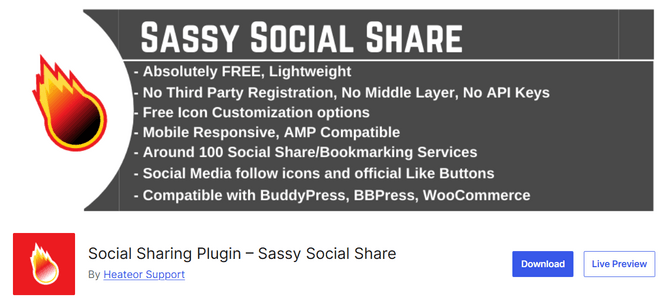
- 100+ social networks and bookmarking services, including Facebook
- Social follow icons linking to your Facebook page and other profiles
- Standard bar and floating sidebar available
- Full icon customization including shape, size, and colors
- Official Facebook Like button you can embed alongside share icons
- WooCommerce product page support
- And more…
Sassy Social Share is a free Facebook plugin that lets you add sharing buttons to your blog so readers can easily share your content to Facebook.
I found it was quite simple to set up. You add it, choose your networks, and your Facebook share button is on your posts within a couple of minutes.
You get both a standard bar above or below your posts and a floating bar that follows readers as they scroll, so the Facebook button stays in reach whether someone decides to share at the top of your article or right at the end.
On top of sharing, you can add follow icons that link to your Facebook page, and even drop in Facebook’s official Like button, so a reader who enjoyed a post can like your page right there without going off to find it.
This plugin is impressive because it offers a lot of advanced features for free, which is perfect for new bloggers just getting started.
| Pros of Sassy Social Share | Cons of Sassy Social Share |
|---|---|
| ✅ Adds follow buttons and Facebook’s Like button, not just sharing | ❌ Can’t show Facebook share counts (a Facebook limitation, not just this plugin) |
| ✅ Floating bar keeps the Facebook button beside readers as they scroll | ❌ No on-image buttons or Click to Tweet like some other plugins have |
| ✅ Style the icons to match your blog and put Facebook first | |
| ✅ Genuinely free, with nothing locked behind a paid plan | |
| ✅ Lightweight, so it won’t slow your posts down |
Pricing: Free
Why I Recommend Sassy Social Share: Sassy Social Share is best for bloggers who want clean, fast Facebook share buttons at no cost. If you need more placement options like on-image buttons or advanced features like share analytics, I’d recommend going with Social Snap instead.
9. Revive Social: Best Free Plugin for Auto-Posting to Facebook
- Auto-posts new content to Facebook the moment you publish
- Automatically reshares older posts on a schedule
- Content filtering to exclude specific categories, tags, or post types
- Custom message templates that control how posts appear
- Time-of-day and day-of-week scheduling controls
- Automatic UTM tags on every shared link for Google Analytics tracking
- And more…
Revive Social is another one of my favorite free Facebook plugins for WordPress. It automatically posts your blog content to your Facebook page, both your new articles as you publish them and your older ones from the archive.
If your Facebook page has gone quiet because you don’t have time to keep posting by hand, this is what brings it back to life.
To set it up, you connect your Facebook page once, then tell it how often to post and which categories to include. So your evergreen how-to guides can go back into rotation while your time-sensitive posts, like a sale that has already ended, stay out of it. After that, it runs on its own.
You can also set up templates so your shared posts are worded the way you’d write them, rather than just a bare headline and link.
Every link it shares is tagged automatically, which means you can open Google Analytics and see exactly how many readers your Facebook auto-posts are sending you. Instead of wondering whether it’s worth it, you can look at the traffic and know.
| Pros of Revive Social | Cons of Revive Social |
|---|---|
| ✅ Automatically shares both new and older posts to Facebook | ❌ You can’t pick exact posting times without the paid version |
| ✅ See in Google Analytics how many readers each Facebook post brings in | ❌ Posting to Facebook Groups requires the Pro version |
| ✅ Choose which categories get shared and which stay off Facebook | |
| ✅ Control the number of posts that get shared | |
| ✅ Create common hashtags and include a link back to your site for post shares |
Pricing: Free. There’s also a Pro version available with more advanced features.
Why I Recommend Revive Social: Revive Social is best for bloggers who’ve written a lot of posts over the years and don’t have time to keep sharing them on Facebook by hand. It shares your new posts the moment they go live and keeps reposting your older ones, so your page stays active and the work you’ve already done keeps bringing people back to your blog.
10. Hootsuite: Best for Advanced Facebook Scheduling and Managing
- Schedule Facebook posts a week or month ahead from one calendar
- AI content assistant that suggests post copy from a URL or topic
- Unified inbox for Facebook comments and messages alongside other platforms
- Analytics dashboard with post performance and custom reports
- Bulk scheduling for high-volume content
- WordPress integration through a free companion plugin
- And more…
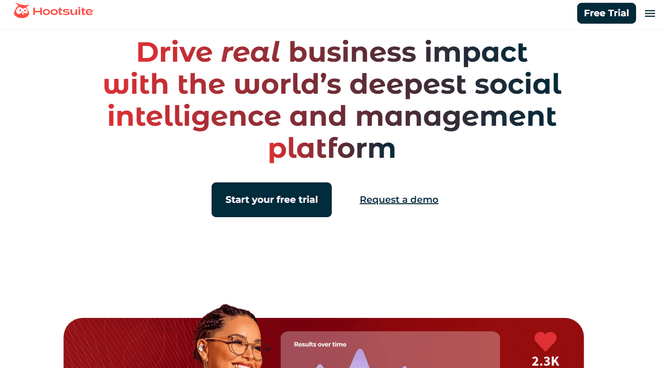
Hootsuite is a popular tool for planning and scheduling social media, and it’s the one professionals use to manage a Facebook page seriously. For a blogger, the draw is being able to line up a month of Facebook posts in one sitting, instead of having to remember to post something every day.
You work from a calendar that lays out your week of Facebook posts at a glance. You can see where the gaps are, slot in a post to fill them, and schedule everything to go out on its own.
If you also post to Instagram or LinkedIn, those sit in the same calendar, so you’re planning all of it together rather than hopping between apps.
It connects to WordPress through a free companion plugin, so when you publish a new blog post you can push it into your Hootsuite queue right from the editor. That saves you copying links back and forth every time you want to promote your latest post on Facebook.
There’s also a shared inbox that pulls your Facebook comments and messages into one place alongside your other accounts, so replying to people doesn’t mean logging into each network one at a time.
And if writing the Facebook caption is the part you keep putting off, the built-in AI assistant will draft one from your post’s link or a quick topic. It gives you something to tweak instead of a blank box, which is often all you need to get it out the door.
The catch is the price. Hootsuite is the most expensive option on this list, and it only really pays off if you’re juggling a Facebook page alongside three or four other busy accounts. If Facebook is your main focus, one of the simpler plugins here will do the job for far less.
| Pros of Hootsuite | Cons of Hootsuite |
|---|---|
| ✅ Plan a weeks of Facebook posts in one sitting | ❌ Far more expensive than other options here |
| ✅ Reply to Facebook comments and messages from one place | ❌ No free plan, just a 30-day trial |
| ✅ Get a first draft of your caption written by AI when you’re stuck | ❌ Overkill if you only manage one or two platforms |
| ✅ Manage Facebook alongside your other social accounts like Instagram and TikTok | |
| ✅ Schedule a big batch of posts at once | |
| ✅ Includes competitor social media analysis |
Pricing: Starts at $99/month.
Why I Recommend Hootsuite: Hootsuite is best for serious bloggers and creators who manage an active Facebook page alongside several other social accounts and want to plan it all from one place. If Facebook is your only platform, or your posting is light, a simpler and cheaper tool will be a better option for you.
What is the Best Facebook Plugin for WordPress?
When it comes to Facebook plugins, you’ll usually try a few before settling on the one that fits. They each do a different job, so the right pick really comes down to what you want Facebook to do for your blog.
Here’s the short version of which Facebook plugin you should use based on the most common needs:
- Display your Facebook feed directly on your blog: Smash Balloon Facebook Feed
- Let visitors message you through Facebook Messenger: WPChat
- Grow your Facebook following with giveaway: RafflePress
- Add free share buttons in a couple of minutes: Sassy Social Share
- Fully customize your Facebook sharing buttons: Social Snap
- Automatically share your new and old posts to Facebook: Revive Social
FAQs About Facebook Plugins for WordPress
Still have questions about Facebook plugins? Here are the answers to some common questions I see from beginners:
Is there a free Facebook plugin for WordPress?
Yes, there are plenty of free Facebook plugins. Sassy Social Share, Nextend Social Login, and Pixel Cat are all completely free. Smash Balloon Facebook Feed Pro has a free version too, though it only shows text posts, with photos and videos on the paid plans.
How do I add a Facebook feed to my WordPress site?
The easiest way is with Smash Balloon Facebook Feed. You connect your Facebook account, pick the page you want to pull from, and drop the feed onto any page or post with a block or shortcode. There’s no code involved, and the feed keeps itself up to date after that.
Can a Facebook feed help with my SEO?
It can, but only if the plugin puts the actual text of your posts on the page. A lot of feed plugins load your posts inside an iframe, which Google can’t read. Smash Balloon adds the real text instead, so the words from your Facebook posts can help your pages turn up in search.
Will a Facebook plugin slow down my website?
A poorly built one can, since anything that loads Facebook’s scripts adds weight to your pages. The better plugins, like Smash Balloon, Social Snap, and WPChat, load in the background so they don’t hold up the rest of your page. If speed is a worry, check that a plugin loads this way before you install it.
Are Facebook plugins GDPR-compliant?
The well-made ones are. Smash Balloon and WPChat, for example, are both built to be GDPR compliant, and WPChat doesn’t store your visitors’ data at all. It’s still worth reading a plugin’s own privacy notes if you’re collecting any information from your visitors.
I hope this article helped explain what Facebook plugins are and how they can help your WordPress blog. I hope you find the right option for you and get more shares and likes for your blog!
Since you’re interested in Facebook plugins, you might also want to check out our expert picks of the best Instagram plugins for WordPress, or see our guide to social media marketing for small businesses.
And don’t forget to sign up for our email newsletter for more helpful blogging tips!
This is a very useful article. Everyone should definitely read this because if you’re unaware of how to integrate facebook into your blogs, you’re definitely missing out on a lot of things. Audience in Facebook is so massive, that you need to exploit it. Thanks for putting it up, appreciate it a lot.
Thank you so much for the information.