

W hen someone finishes one of your posts and leaves, it's not always because they didn't enjoy it. It's because there was nothing on the page showing them what to read next.
I noticed this on my own WordPress blog when I first started looking at my analytics properly. People were finding one of my posts, reading it, and leaving.
My archive was full of other great content those people would have actually wanted, but they just had no idea any of it was there.
Related post plugins fix that. They put other posts in front of readers right after they finish something, when they’re most open to clicking through.
After testing a range of options, here are the 7 best related post plugins for WordPress I’d recommend.
I’ve covered both completely free WordPress related posts plugins and paid tools with smarter, analytics-backed recommendations, so you can find the right fit for your blog.
Overview: Best Related Post Plugins for WordPress
If you don’t have time to read the full reviews, check out this handy comparison table to quickly find the best related posts plugin:
| # | Plugin | Best For | Pricing | Free Version |
|---|---|---|---|---|
| 1 | MonsterInsights | Analytics-driven popular post recommendations for WordPress | $99.50/yr | ✅ |
| 2 | SearchWP | Relevance-based related posts for WordPress sites | $199/yr | ❌ |
| 3 | WP Popular Posts | Free popular post display for WordPress blogs | Free | ✅ |
| 4 | Contextual Related Posts | Automatic content-based related posts for WordPress | Free | ✅ |
| 5 | Inline Related Posts | Embedding related posts inside WordPress articles | Free | ✅ |
| 6 | Jetpack Related Posts | Free related posts for Jetpack users | Free | ✅ |
| 7 | YARPP | Customizable related posts algorithm for WordPress | Free | ✅ |
Why Do You Need a Related Posts WordPress Plugin?
Once you have a library of posts, the real work isn’t writing more, it’s making sure readers actually find what you’ve already written.
Most visitors arrive from a search result, read one post, and leave without seeing anything else. Related post plugins are one of the most practical ways to change that.
Here’s what the right related posts plugin makes possible on your WordPress blog:
- Boost Visibility of Older Content – New visitors to your blog are likely reading your latest posts but missing out on great, older content. With a related posts plugin, you can make sure your best content gets views even if it’s buried under a ton of newer blog posts.
- Increase Engagement – By displaying related posts, you can get visitors to stay on your website longer. The longer they stay on your website, the more likely they are to interact by commenting or sharing your content.
- Improve SEO – With better engagement, higher pageviews, and more opportunities to internal link content, you can improve your blog SEO and drive more traffic to your site.
- Boost Conversions – Again, with users staying on your website longer, you have a better chance of converting them. The more content they read, the easier it is to get them to sign up for your email list or buy a product.
If you’ve put real work into building a content library, a related posts plugin makes that work go further without requiring anything extra from you.
How I Test and Review WordPress Related Posts Plugins
Choosing a related post plugin isn’t just about features. It’s about what your readers actually see at the bottom of every post you publish. I tested each one on a real WordPress site with real content, because a demo site with five posts doesn’t tell you much.
My goal was to find the ones that are genuinely worth installing, and to be upfront about any that have problems worth knowing about before you commit.
Here’s what I focused on:
- Relevance Quality: Do the suggestions actually connect to what the reader just finished? I looked at whether the matches felt like they’d been picked, or whether the plugin was just surfacing posts that share a category or tag label regardless of what they’re actually about.
- Ease of Setup: Can you easily get related posts showing up on your site without touching any code or running into complicated issues?
- Placement options: Can you show related posts after the content, inside the article, in a sidebar widget, or on custom page types? Different themes and content setups need different options, and some plugins are much more flexible than others.
- Site Speed: I checked whether each plugin saves its results between page loads or recalculates them every time, since that difference matters to your site speed the bigger your archive gets.
- Customization: Can you control how many posts show, whether they include thumbnails, and how the section looks? Related posts sit right in your content, so they need to look like they belong there.
All of the plugins on this list will do the job. A few went further than I expected. And there’s a couple I’d hold off on installing for now, for reasons I’ll flag in the reviews.
Now that you know why you need a related posts plugin, let’s take a look at the best options.
1. MonsterInsights: Best Related Posts Plugin for Analytics-Driven Recommendations
- Easily display your most popular posts anywhere on your site
- 20 pre-made popular post themes
- Automatically display top-performing blog posts
- Variety of customization options
- Popular Products widget for WooCommerce sites
- Real-time Google Analytics dashboard inside WordPress
- Scroll depth, outbound link, and media tracking
- And much more…
MonsterInsights is best known as the leading Google Analytics plugin for WordPress, but it also comes with a Popular Posts widget that works differently from the other plugins on this list.
Most related posts plugins make their best guess from your titles, tags, and text. MonsterInsights pulls from your actual Google Analytics data instead. So, the posts it suggests are ones visitors have already clicked on and read.
MonsterInsights is super easy to set up and it walks you through connecting to Google Analytics step-by-step. Once you’re in, you have two ways to display popular posts: as Inline Popular Posts inserted directly inside your content, or as a Popular Posts Widget in your sidebar or any other widget area.
I also love the Automatic Placement option, which adds the widget to all your posts at once without you having to go in and manually insert it anywhere. Set it up once and every post on your blog starts showing popular recommendations below the content.
There are pre-made themes to pick from for a polished look right away, and you can adjust from there: heading text, background color, number of posts, category exclusions, and more.
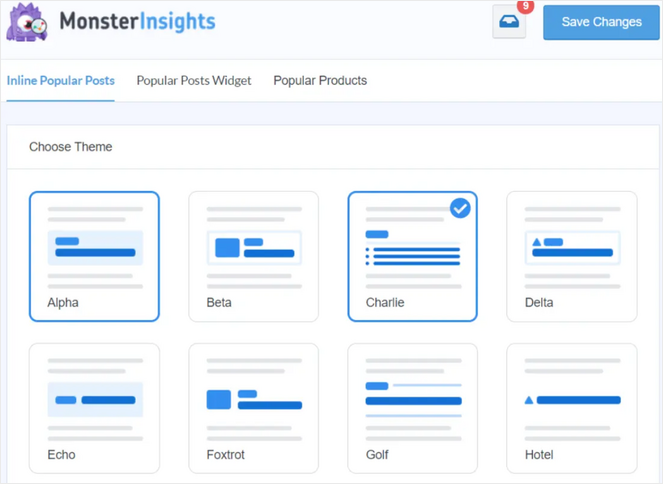
Plus, you can sort the posts you display based on the number of comments and shares or manually choose which posts to display.
If you run a WooCommerce store alongside your blog, there’s also a Popular Products widget that works the same way. It shows the products your visitors actually buy most often, right where readers are already engaged with your content.
Every blogger needs an analytics plugin anyway, so getting popular post recommendations built in is just a bonus. MonsterInsights is the analytics plugin I use on all my own blogs and websites, and it’s the one I’d recommend even if Popular Posts wasn’t part of it.
To learn more, see my detailed MonsterInsights review.
| Pros of MonsterInsights | Cons of MonsterInsights |
|---|---|
| ✅ Shows popular posts your actual visitors clicked and read | ❌ Popular Posts feature requires a paid plan |
| ✅ Automatic Placement adds the widget to every post at once | ❌ More than you need if all you’re looking for is a related posts plugin |
| ✅ Pre-made themes for displaying popular posts and multiple customization options | |
| ✅ Google Analytics connected through a guided setup wizard | |
| ✅ Works with WooCommerce to show popular products too | |
| ✅ One plugin covers both Google Analytics and popular post recommendations |
Pricing: Starts at $99.50/year. There’s also a free version of MonsterInsights you can download, though the Popular Posts feature requires the paid plan.
Why I Recommend MonsterInsights: MonsterInsights is best for bloggers who want related post recommendations backed by real reader behavior and who are also looking for a Google Analytics plugin. If you need both analytics and popular posts in one place, it removes an extra plugin from your install list and gives you better recommendation data than any content-matching algorithm can.
2. SearchWP Related Content: Best WordPress Plugin for Relevance-Based Related Posts
- Automatically displays related posts using keywords
- Customize what keywords are used to determine related content
- Ability to exclude specific content from related content
- Handpick the exact related content to show on any post or page
- Auto-append, Gutenberg block, shortcode, or widget display options
- Replace the default WordPress search with a fully customizable engine
- Shows related products on WooCommerce pages
- And more…
SearchWP is one of my favorite WordPress search plugins that offers a powerful Related Content feature. It lets you show readers related posts, pages, and products anywhere on your site.
The Related Content feature works by running a keyword search across your site and showing the top matches as suggestions. By default, SearchWP pulls those keywords from each post’s title, filters out common words, and runs the search automatically.
I also discovered that if the suggestions aren’t right for a specific post, you can open the editor, swap in different keywords, and see the results update before you publish.
One of the most helpful features is that you can handpick related content for specific posts. For cornerstone articles you always want paired with certain key posts, you can set those manually instead of leaving it to the algorithm. That gives you control over your most important content without turning off automatic suggestions everywhere else.
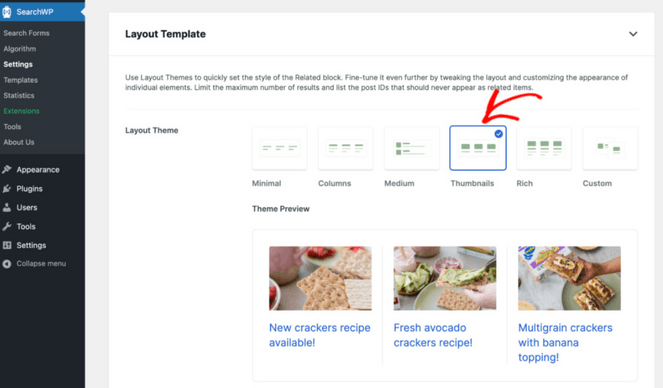
Display options are flexible too. You can auto-append related posts to every post, drop them in via Gutenberg block, add a widget to your sidebar, or use a shortcode. There are five pre-built themes to choose from, so you can match the look to your site without touching any code.
Like MonsterInsights, for online store owners, SearchWP also suggests related products on your product pages based on what’s in the descriptions and attributes. Shoppers see things that genuinely fit what they’re looking at, which makes for smarter upsells than WooCommerce’s default product display.
The related content feature is part of the Pro plan, so it’s a bigger investment than a standalone free plugin. But if you’re also looking for a better search experience on your site, you get both for the same price.
| Pros of SearchWP | Cons of SearchWP |
|---|---|
| ✅ Related posts matched by keyword, not just tag or category labels | ❌ Related content feature requires the Pro plan |
| ✅ Handpick exactly which posts appear as related on any page | ❌ More than you need if better site search isn’t also a goal |
| ✅ Pre-built templates so you’re not starting from a blank widget | |
| ✅ Auto-append adds related content to every post at once without manual insertion | |
| ✅ Works for WooCommerce products as well as posts | |
| ✅ Full custom search engine included in the same plan |
Pricing: The Related Content feature requires the Pro plan at $199/year. There’s no free version of SearchWP that includes related posts.
Why I Recommend SearchWP Related Content: SearchWP is best for bloggers who want more than automatic related post suggestions. The keyword customization per post and the handpick option give you control over what readers see next to your most important content. And since the Pro plan also replaces your site’s default search with a fully customizable engine, you’re getting two real upgrades with one subscription.
3. WP Popular Posts: Best Free Plugin for Displaying Popular Posts on WordPress
- Create multiple related posts widgets, each with its own settings
- Time range filtering for last 24 hours, 7 days, 30 days, all time, or custom
- Sort by total views, comment count, or average daily views
- Thumbnail display with customizable dimensions
- Built-in styling themes plus full custom HTML layout options
- Admin dashboard statistics panel
- And more…
WordPress Popular Posts is my top pick of the best free related posts plugins for displaying your most popular content. Even though it’s a free plugin, it comes with a lot of valuable features.
The time range filtering is one of the most useful things about it. You’re not stuck with a single all-time popular posts list that never changes. You can set it to show what’s trending right now, like the past 24 hours, the last 7 days, or whatever range you set, so the recommendations stay current as your blog grows and publishing schedule evolves.
I also like how you can run multiple popular post lists on the same site, each with completely independent settings. For example, your sidebar widget might show the five most popular posts of all time, while the list at the bottom of each post shows what’s been trending this week.
By default it shows your most-viewed posts, but you can also rank by comment count or average daily views. Average daily views is worth using if you publish regularly — a post from last week that’s getting clicks every day will surface next to posts that have been accumulating views for years, instead of getting buried under them.
The plugin counts pageviews itself, so you can see which posts readers are actually clicking on across whatever time range you’ve set. However, it’s not as accurate as an analytics plugin like MonsterInsights.
In addition, the display options go further than most free plugins. You can include thumbnails with custom dimensions, show excerpt snippets, add view counts, change the date format, or build a fully custom layout using the plugin’s HTML template system.
| Pros of WP Popular Posts | Cons of WP Popular Posts |
|---|---|
| ✅ Completely free related posts plugin | ❌ Shows popular posts by traffic, not content-matched related posts |
| ✅ Time range filtering keeps recommendations current | ❌ View counts are estimates — not precise analytics |
| ✅ Can create multiple different lists on the same site | |
| ✅ Display customization including thumbnails and custom HTML layouts | |
| ✅ Supports custom post types | |
| ✅ Multilingual support via Polylang and WPML |
Pricing: WordPress Popular Posts is a free plugin.
Why I Recommend WP Popular Posts: WP Popular Posts is best for bloggers who want to show readers their most popular content with a simple, dedicated plugin. The time range filtering keeps the list feeling current, and the display customization is better than you’d expect from a free tool.
4. Contextual Related Posts: Best for Automatic Content-Based Related Posts
- Displays related posts automatically
- Algorithm that analyzes post titles and content to determine genuine relevance
- Exclusion controls for specific categories or tags
- Placement control with block editor block, widget, and shortcode
- Built-in caching to reduce server load on larger sites
- Thumbnail display with custom post type support
- And more…
Contextual Related Posts is another free plugin you can use to display related posts on your WordPress blog. The plugin uses your current post’s title and content to automatically display other relevant posts that are interesting to your readers.
When I tried it out, I found that the setup is about as minimal as it gets. Simply install the plugin, activate it, and related posts start appearing at the bottom of each post automatically.
You can also control where posts show up without touching any code: there’s a block editor block, a widget for sidebars, and a shortcode if you want to place it inside your content.
I appreciate the exclusion controls as well. It lets you filter out specific categories or tags from ever appearing in recommendations, which is useful if you have specific content you’d rather not suggest to readers.
Caching is built in, which means it won’t slow down your site. Unlike some other free plugins I looked at, Contextual Related Posts stores the results and updates them periodically rather than working from scratch every time.
| Pros of Contextual Related Posts | Cons of Contextual Related Posts |
|---|---|
| ✅ Content-based matching, not just tags and categories | ❌ Advanced algorithm customization requires the Pro version |
| ✅ Automatically appears after posts with minimal setup | ❌ Fewer styling options in the free version |
| ✅ Built-in caching keeps performance impact low | |
| ✅ Category and tag exclusion controls | |
| ✅ Block, widget, shortcode, and REST API placement options | |
| ✅ Works with blog posts and custom post types |
Pricing: Free. There’s also a Pro version of the plugin available with more advanced features.
Why I Recommend Contextual Related Posts: Contextual Related Posts is best for bloggers who want content-based related posts with no configuration work. Install it and it starts doing its job immediately. If you’ve been putting off setting up related posts because it seemed like a hassle to configure, this plugin removes the excuse.
5. Inline Related Posts: Best Free Plugin for Embedding Related Posts Inside Content
- Easily display related posts boxes inside your content
- Show multiple boxes inside all of your posts
- In-content placement between paragraphs using an automatic line-break detection algorithm
- 20+ customizable style combinations with themes, colors, and hover effects
- Works with other related post plugins and alongside bottom-of-post displays
- Gutenberg block and shortcode support
- And more…
Inline Related Posts takes a different approach from most plugins on this list: instead of showing related content at the bottom of a post, where some readers never scroll, it places suggestions inside the article, between your paragraphs.
The idea behind this placement is practical. A reader who gets partway through a long post and starts to lose interest is much more likely to click a related post suggestion mid-article than to scroll all the way to the bottom and click there. By the time a reader reaches the end, they’ve already decided whether to stay or go.
The plugin automatically detects line breaks so when it places your related posts, it won’t interfere with your paragraphs or headlines. If you want more control over exactly where the boxes appear, there’s a shortcode you can drop into any specific spot in your editor.
You can display multiple related post boxes in your articles and customize the style by choosing different themes, colors, and hover effects.
I also like that you can run it alongside other related post plugins on this list. Use Inline Related Posts for in-content suggestions and still display a full list at the bottom from a different plugin, the two don’t interfere with each other.
One thing I’d flag honestly: a June 2025 report from Patchstack flagged unpatched security vulnerabilities in this plugin. It’s worth checking that you’re running the latest version before installing and keeping it updated regularly if you use it.
| Pros of Inline Related Posts | Cons of Inline Related Posts |
|---|---|
| ✅ In-content placement displays related posts to readers before they reach the end | ❌ Security vulnerabilities flagged by Patchstack as of June 2025 — keep updated |
| ✅ Line-break detection respects your blog post structure | ❌ Full styling library requires a paid upgrade |
| ✅ Works alongside other related post plugins | ❌ Free version limited to 3 inline boxes per post |
| ✅ Shortcode for precise manual placement | |
| ✅ 20+ style themes for matching your site design | |
| ✅ Gutenberg block support |
Pricing: Free. There’s also a Pro version that starts at $79/year.
Why I Recommend Inline Related Posts: Inline Related Posts is best for bloggers who publish long articles and want to engage readers with related posts while they’re still reading, not just after they finish. Just remember, update it immediately after installing and keep it current given the open security advisory.
6. Jetpack Related Posts: Free Related Posts Feature for Jetpack Users
- Automatically display related posts with one click
- Content analysis to suggest genuinely related posts
- Thumbnail display option with or without images
- Customizable heading text and post excerpt display option
- No additional load on your server
- Additional Jetpack traffic tools
- And more…
If you already have Jetpack installed on your WordPress blog, you have a free related posts feature waiting to be turned on — and most people never notice it’s there.
Turning it on takes about thirty seconds. Open Jetpack settings, find the Related Posts option, and enable it. From there, related posts appear automatically below every single post on your site. You don’t configure an algorithm, set up categories, or add a widget. It just runs.
Content analysis runs on Jetpack’s servers rather than yours, which is one of the reasons it stays fast. For bloggers on smaller hosting plans who worry about site speed, that’s worth noting.
The recommendations are based on actual content, not just tags. Jetpack reads your posts and matches them by topic, so you get relevant suggestions even for posts that don’t share an obvious category overlap. For a lot of blogs, the quality of the results is noticeably better than simpler tag-based plugins.
The display options are limited compared to dedicated plugins, but they cover the basics. You can show or hide thumbnails, change the heading, and control whether excerpts and context labels appear beneath each recommendation. You can’t build a fully custom layout, but for most blogs the default look is clean.
The main consideration is the plugin itself. Jetpack comes packed with dozens of features, most of which you probably don’t need just for related posts. If you’re already running it on your site, turning on Related Posts costs you nothing extra. If you’d have to install it from scratch for this one feature, a dedicated plugin is a simpler choice.
| Pros of Jetpack Related Posts | Cons of Jetpack Related Posts |
|---|---|
| ✅ Completely free for all Jetpack users | ❌ Requires Jetpack, which may be overkill if you only need this one feature |
| ✅ Automatically displays related posts with 1-click | ❌ Limited layout customization compared to dedicated plugins |
| ✅ Content-based matching, not just tag overlap | ❌ Mixed user reviews on Jetpack overall on WordPress.org |
| ✅ Runs on Jetpack’s servers so there’s no database load on your site | |
| ✅ Includes thumbnail and excerpt display options |
Pricing: There is a free version for download in the official WordPress plugin repository. You can upgrade to the premium version for more advanced features starting at $4.95/month.
Why I Recommend Jetpack: Jetpack Related Posts is best for bloggers who are already running Jetpack and haven’t turned on this feature yet. If that’s you, enabling it is the fastest related posts setup on this entire list. If you’re not already on Jetpack, one of the standalone plugins here is a better fit.
7. Yet Another Related Posts Plugin: Best Free Plugin for a Customizable Related Posts Algorithm
- Custom templates and styles
- Variety of placement options
- Works with all languages
- Custom post type and taxonomy support
- Integrates with WooCommerce
- And more
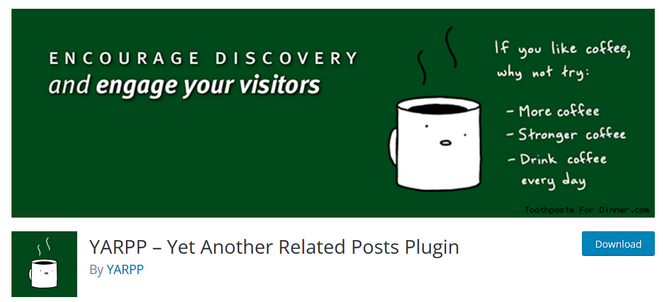
Yet Another Related Posts Plugin (YARPP) is another free and well-established related posts plugin for WordPress with over 100,000+ active installations, so I had to add it to this list.
What makes it stand out from the other free options is how much control you get over how the matching works. You can adjust how much weight the algorithm gives to each element. For example, a blog built around careful tagging can lean heavily on tags, while one where the writing itself is the main signal can weight the full content instead.
What I find most useful is the match threshold setting. It controls how confident the plugin needs to be before it shows a post as related. Set it higher and you get fewer results, but the ones it shows are more closely matched. Lower it and you get more suggestions, some of which will be more loosely connected.
Display options include a block editor block, widget, shortcode, and pre-built templates to get you started without any design work.
One thing to consider before installing: WordPress.org currently shows a notice that YARPP hasn’t been tested with the latest three major WordPress releases, which can cause errors and security vulnerabilites.
| Pros of YARPP | Cons of YARPP |
|---|---|
| ✅ Display related posts based on titles, content, tags, and categories | ❌ Not tested with the latest 3 major WordPress releases — check compatibility first |
| ✅ Control how strictly it matches before recommending a post | ❌ Can slow your site down on larger blogs and it’s blocked on some managed WordPress hosting |
| ✅ Completely free related posts plugin | ❌ More settings to learn than simpler one-click plugins |
| ✅ Multiple display options and pre-made templates | |
| ✅ Works with multilingual sites, WooCommerce, and bbPress |
Pricing: Free.
Why I Recommend YARPP: YARPP is best for bloggers who want a free plugin with more control over how related posts are matched rather than accepting a default algorithm. The weighting controls and match threshold give you real precision over what readers see next. Just check the WordPress.org compatibility warning before installing, and be aware it can impact site speed on larger blogs.
What Is the Best Related Post Plugin for WordPress?
MonsterInsights is my personal top pick. If you want popular post recommendations backed by real reader behavior — not a content-matching algorithm — and you’re looking for a Google Analytics plugin anyway, MonsterInsights gives you both in one. It’s the plugin I use on my own blogs.
If relevance is the priority and you also want better site search, SearchWP’s Related Content feature matches posts by keyword and lets you handpick suggestions for your most important content.
For a free option with zero setup, Contextual Related Posts is the fastest way to get related posts showing on your site. Install it and it starts working immediately.
If you publish regularly and want more control over which posts surface, WP Popular Posts lets you show what’s trending by time range rather than all-time views and it’s also totally free.
FAQs on the Best WordPress Related Post Plugins
Still have questions about WordPress related posts plugins? Hopefully I can answer your questions below:
What are related posts in WordPress?
Related posts are suggestions that appear on your blog, usually below a post, linking to other articles a reader might enjoy next. Most plugins generate these automatically by comparing the content, tags, or categories of the current post to everything else on your site. The goal is to give readers a natural next step when they finish reading, rather than a dead end that sends them back to Google.
Are related posts good for SEO?
They help indirectly. Related posts create internal links between your articles, which helps search engines understand how your content is connected and can contribute to how your posts are crawled and ranked over time. The more meaningful benefit is audience-building: a reader who clicks through to a second post is more likely to subscribe, share, or come back later, and that ongoing engagement is ultimately what grows a blog.
What’s the difference between related posts and popular posts?
Related posts are matched to the specific article a reader just finished, they’re supposed to be topically connected to what that person was reading. Popular posts are your site’s most-viewed content regardless of what the reader just read. Some plugins on this list, like MonsterInsights and WP Popular Posts, show popular posts. Others, like YARPP and Contextual Related Posts, show content-matched related posts. Both work for keeping readers engaged but they use different signals to decide what to show.
Do related posts plugins slow down my site?
Some can, but it depends on how the plugin handles the process. Finding related posts requires your site to search through its database for matches, and plugins that do this on every single page load can add real overhead on larger blogs. Most of the plugins on this list include caching, which means the matches are calculated once and stored, rather than recalculated every time a visitor loads a page.
With that, we’ve reached the end of this list of the best related posts plugins for WordPress. Now you can choose the best related posts plugin for your needs and encourage visitors to read more of your articles.
If you enjoyed this post, you might want to check out our expert picks of the best blog topic research tools to find new content ideas, or see our tutorial on how to create a blog content calendar, which will help you organize and schedule new posts.
And don’t forget to sign up for our email newsletter for more helpful blogging tips!
Great post and thanks for recomendation. I Just know, another plugin except jetpack relatd post.
May i ask?
What related post plugin used in blogtyrant.com ?
I think, your related post is cool. In my blogs, i used related post, in bundling with theme.
🙂
Very helpful for new bloggers. Thanks
Hi, This is vijay
This is the more informative blog, I was really interested while I reading this.