

M onetizing a blog with ads is one of those things that sounds simple in theory, but gets messy quickly in practice…
In my experience, the hardest part isn’t getting ads live — it’s controlling what happens after they’re set up. Something can look fine when you first place it, then later you notice it shifts your layout on mobile, pushes content around in unexpected ways, or interrupts the reading flow on certain pages.
It’s also common for ads to appear in places you didn’t plan for, like near navigation menus or inside content where they don’t belong.
That’s where ad management plugins come in. From what I’ve tested, the better ones make things much easier by giving you control over placement, targeting, scheduling, and tracking directly inside WordPress.
After going through a bunch of the most popular options, I’ve put together this list of the 7 best WordPress advertising plugins to help you choose the right one for your blog.
Overview: Best WordPress Advertising Plugins for Bloggers
No time to read the full reviews? No problem, check out this comparison table to quickly find the best advertising plugin for your needs:
| # | Plugin | Best For | Starting Price | Free Version |
|---|---|---|---|---|
| 1 | Advanced Ads | Complete ad management control | €59/year | ✅ |
| 2 | WPCode | Safely adding and controlling ad code across your site | $49/year | ✅ |
| 3 | AdRotate Banner Manager | Free ad rotation and scheduling | €49/year | ✅ |
| 4 | AdSanity | Managing and tracking your own self-hosted ads | $9/month | ❌ |
| 5 | Ad Inserter | Placing ads in very specific locations across your site | €20/year | ✅ |
| 6 | Quads Ad Manager | Running AdSense with proper placement and AMP support | $89/year | ✅ |
| 7 | Google Ad Manager | Managing ads across multiple networks and direct deals | Free | ✅ |
Why You Need a WordPress Advertising Plugin
Manually adding ad code to your site can work at first, but it quickly becomes difficult to manage. Ads can end up showing in the wrong places, layouts can break when your theme updates, and testing different placements usually means repeatedly changing code.
A WordPress advertising plugin solves this by giving you control from inside your dashboard. Instead of relying on theme files or default ad network behavior, you decide how and where ads appear across your site.
With that level of control, you can do things like:
- Place ads in specific locations like after paragraphs, in sidebars, or between posts
- Exclude ads from certain pages like contact, about, or privacy pages
- Rotate different ads in the same position
- Schedule ads to start or stop automatically
- See which ad placements are actually performing
All of this makes it much easier to optimize your ads over time, which can directly lead to better performance and more revenue from the same traffic.
How I Test and Review WordPress Advertising Plugins
I’ve been testing ad plugins for years, mostly because getting ads to show up exactly where you want them is harder than it sounds.
There are a lot of options out there, and many of them look similar on the surface, until you actually try to do something specific, like placing an ad in the middle of a post but not showing it on every page. That’s usually where things start to fall apart.
When I test an advertising plugin, I’m thinking about the average blogger: someone who wants to monetize their content, doesn’t want to touch code, and needs everything to work reliably without ongoing maintenance.
I set each plugin up from scratch and pay close attention to how it performs on a real WordPress blog.
Here’s what I look at in each review:
- Ease of setup: How quickly you can get a working ad running without editing theme files or digging through documentation
- Placement control: How much flexibility you have over where ads appear, including posts, pages, and specific sections
- Ad network support: Whether it works smoothly with different ad networks
- Tracking: Whether you can actually see what’s performing and what isn’t
- Performance impact: Whether the plugin stays lightweight or slows the site down
This approach makes it clear which plugins actually make ad management easier and which ones end up creating more work than they solve.
With that said, let’s take a look at the best advertising plugins for WordPress!
1. Advanced Ads: Best Plugin for Complete Ad Management
- Display an unlimited number of ads and placements
- Create single ads or ad blocks
- Set start and expiry dates for ads
- A/B testing and ad tracking reports
- Click fraud protection
- Sell ad space directly in the frontend of your site
- Trigger ads based on user activity
- And more…
Advanced Ads is one of the most complete ad management plugins for WordPress, and it’s my top pick for bloggers who actually want to turn traffic into income. I was able to get an ad running almost immediately after installing it, without having to dig through a long setup process first.
This plugin works with many different ad types including Google AdSense, Google Ad Manager, Amazon ads, and more.
Where Advanced Ads really stands out is its AdSense integration. You can import ad units directly from your AdSense account, adjust sizes and settings inside WordPress, and manage everything without constantly switching between dashboards.
It also automatically generates your ads.txt file with the correct details, which is important if you’re running AdSense seriously.
What I like most is how flexible the display rules are. You can show or hide ads on specific posts, categories, archive pages, or the homepage, and easily exclude pages where ads don’t make sense. It also supports device targeting, so you can show different ads to mobile and desktop users if needed.
Advanced Ads even supports automatic injections, which lets you automatically place ads into your content based on paragraphs, headlines, and images. This means you don’t have to open existing pages or posts for your banners to appear, saving you a ton of time.
The ad rotation feature is super helpful as well. You can group multiple ads together and let the plugin rotate them automatically, which makes it easy to test different ads or placements without constantly changing things manually.
The built-in reporting will help you identify your top-performing ads by tracking clicks and impressions. Plus, it includes A/B testing so you can see which setups perform better over time instead of guessing.
| Pros of Advanced Ads: | ✅ Endorsed by Google, works with all major ad networks ✅ Deepest AdSense integration on this list ✅ Precise display and visitor conditions without coding ✅ Ad rotation and A/B testing included ✅ Auto-generated ads.txt for AdSense compliance ✅ Comes with detailed tracking and reports |
| Cons of Advanced Ads: | ❌ Some users report bugs introduced by recent updates ❌ The free version is limited |
Why I Recommend Advanced Ads: Advanced Ads is best for bloggers who want full control over their ad setup and are planning to actively manage and optimize it over time. It gives you a lot of flexibility in how ads are placed, displayed, and tested, which makes it a strong choice if you want more than just basic ad insertion. If you only need something simple to place a few ads, there are easier tools on this list.
Pricing: There is a free version of the plugin available to download. Pro version starts at €59 per year for a single site.
2. WPCode: Best for Safely Adding and Controlling Ad Code
- Easily insert ad code and display ads anywhere in WordPress
- Auto-insert feature to control where your ads are displayed
- Schedule ads to display for specific time periods
- Conversion pixels to track ad performance
- User-friendly dashboard to manage your code
- Integrates with WooCommerce, Easy Digital Downloads, and MemberPress
- And more…
WPCode is a WordPress code snippets manager with over 3 million active installs, and it’s my pick for bloggers who want to add ad code from any network without installing a dedicated advertising plugin.
If Google gives you an AdSense script and you just need it in your site’s header, footer, or anywhere in between, WPCode handles that in a couple of clicks, directly from your WordPress dashboard.
I’ve used this plugin for years and adding ad code is super simple, even for beginners. You create a new snippet, paste in the code (whether that’s AdSense, Amazon Ads, or any other network), choose where it should go, and publish.
The code runs on your site exactly as if you’d added it to your theme files, except it’s stored separately, so it survives theme updates and theme changes without you ever having to think about it again.
I love WPCode’s smart validation. Before a snippet goes live, the plugin checks for errors and automatically prevents it from running if something is wrong. For bloggers who aren’t comfortable with code, it means they can try things safely without worrying about breaking their site.
It comes with advanced auto-insert locations, which allow you to display ads automatically within your blog post content, between blog posts, at the end of posts, in site-wide headers and footers, before or after the WooCommerce cart, and more.
WPCode will also help you track your ad performance on popular platforms like Facebook, Pinterest, TikTok, and Google Ads. In a few simple clicks, you can add eCommerce conversion pixels to track events like product page view, add to cart, checkout, and purchase.
And the best part is that WPCode isn’t only for ads, there’s actually a TON of awesome uses for this plugin:
| Pros of WPCode: | ✅ Works with any ad network — paste any code and it runs ✅ Smart error-checking so you never accidentally break your site ✅ Advanced auto-insert locations and conditional logic to control where your ads appear ✅ Ad code survives theme updates and theme switches ✅ 140+ ready-made snippets for other WordPress tasks ✅ Free version covers everything most bloggers need |
| Cons of WPCode: | ❌ No ad banner rotation ❌ Conversion pixel tracking requires a Pro plan |
Pricing: A free version of WPCode comes with everything you need to insert ad code into WordPress. For advanced features like eCommerce conversion pixels, scheduled code snippets, and more, you need to upgrade to WPCode Pro, starting at $49 per year.
Why I Recommend WPCode: WPCode is the right choice for bloggers who already have an ad network account and just need the code deployed properly, with control over where it runs, auto-insert locations for specific positions in your content, and error-checking so nothing breaks. Pro adds conversion pixel tracking for platforms like Google Ads, Pinterest, and TikTok. If you need to rotate multiple banners or A/B test placements, Advanced Ads is built for that.
3. AdRotate Banner Manager: Best Free Plugin for Ad Rotation
- Simple ad management dashboard
- Create single ads and ad groups
- Place ads anywhere on your WordPress site
- Supports automatic ad rotation
- Tracks clicks and impressions
- And more…
AdRotate Banner Manager is another one of the best free WordPress advertising plugins available to you as it allows you to create unlimited adverts and easily display them in any WordPress page or post using blocks, widgets, and shortcodes.
You can place banners and ads on your site from affiliate networks like Amazon and from multiple ad networks like Google AdSense, Google Ad Manager, BuySellAds, DoubleClick, and more. You can also create your own ads with basic HTML and the built-in advert generator.
Where it stands out from the others on this list is ad rotation — cycling multiple ads through the same spot automatically so no single banner runs every time a reader loads the page.
The system works through ad groups. You create individual ads, assign them to a group, and the group represents one location on your site. When a reader visits, AdRotate picks which ad to show, rotating through your full set over time.
You can add as many ads to a group as you want, and create as many groups as your layout requires. Locations on one side, content on the other. It’s a clean way to think about ad management.
During testing, I also discovered that it supports ad scheduling, and it tracks clicks and impressions so that you can keep an eye on how well your ads are performing.
| Pros of AdRotate Banner Manager: | ✅ Built around ad rotation — does it better than most on this list ✅ Ad groups make managing multiple campaigns in one location easy ✅ Scheduling lets campaigns start and stop without manual input ✅ Compatible with all major ad networks and custom HTML ✅ Works with the block editor, widgets, and shortcodes ✅ Click and impression tracking in the free version |
| Cons of AdRotate Banner Manager: | ❌ Maintained by a single developer, which means slower update cycles and forum-only support on the free version ❌ Some users report that the dashboard upsell banners in the free version are intrusive |
Pricing: Free. There’s also a premium version available with advanced features like geo-targeting, mobile adverts, ad block disguise, and more, starting at €49 per year.
Why I Recommend AdRotate Banner Manager: AdRotate is one of the better free options for bloggers who are just getting started with ad management. The free version covers rotation, scheduling, and click tracking without requiring a paid plan, which makes it a practical starting point if you want to run multiple campaigns without committing to a subscription.
4. AdSanity: Best for Managing Your Own Self-Hosted Ads

- User-friendly interface
- Works for self-hosted ads and external network ads
- Easily insert ads anywhere on your WordPress site
- Insert a single ad or ad group
- Schedule ads with start and end dates
- Graphical stats to track ad performance
- And more…
AdSanity is a lightweight WordPress ad management plugin, built for bloggers who want to run their own ads (custom banners, affiliate graphics, local business promotions) without affecting your website speed.
Most ad management plugins are designed for AdSense first and treat everything else as an add-on. AdSanity treats all ad types equally, whether you’re running a network ad or a banner you put together yourself.
I found that the setup process feels familiar and easy because AdSanity borrows WordPress’s own interface. You create an ad the same way you’d create a post: there’s a title, a content area for your ad code or image, and scheduling options in the sidebar. If you know how to write a WordPress post, you already know how AdSanity works.
Every ad in AdSanity runs on its own schedule. You set an exact publish date and end date, or run it indefinitely. A seasonal affiliate promotion, a partner banner with a hard deadline, and a banner for your own content that runs all year can all run side by side, each on its own schedule. Nothing slips through because you forgot to turn it off.
The click and impression stats are simple but they cover what matters. You can see how each ad performs individually, which is exactly what you need when you’re reporting back to a local business advertiser or comparing two banners in the same spot to see which one gets clicked.
| Pros of AdSanity: | ✅ Built for self-hosted ads and network ads ✅ Familiar WordPress post-style interface is easy to learn ✅ Date-based scheduling for precise campaign management ✅ Lightweight build that won’t slow down your blog ✅ Strong support — 3.5-hour average response time ✅ Supports video ads in addition to standard banners and HTML5 formats |
| Cons of AdSanity: | ❌ No free version ❌ Conditional ad appearance requires purchasing a separate addon — plugins like Advanced Ads and WPCode include this feature without needing to pay extra |
Pricing: Starts from $9 per month (billed annullay) for the AdSanity core plugin and access to all basic addons.
Why I Recommend AdSanity: AdSanity stands out for bloggers who create and sell their own ads. If you’re working with local businesses, sponsors, or running affiliate banners you’ve put together yourself, it gives you a clean way to manage all of that with per-ad stats you can share directly with advertisers. If you’re primarily running code from an ad network, the other plugins on this list are a better fit and more affordable.
5. Ad Inserter: Best for Advanced Ad Placement and Positioning
- Automatically inserts ads on posts and pages
- Option to disable automatic ad insertion in specific posts and pages
- Insert different ad codes on AMP pages
- Supports timed ad rotation
- Custom alignments and styles
- Ad blocking detection
- And more…
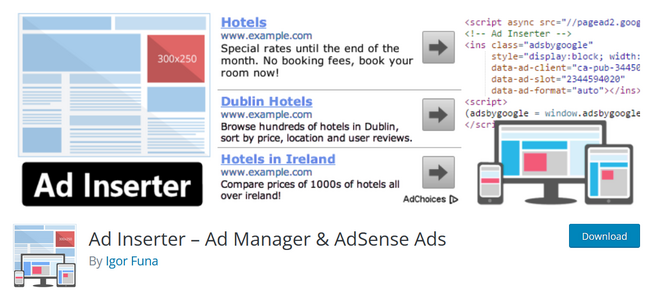
Ad Inserter is one of the most popular, free ad management plugins available for WordPress, with over 300,000+ active installations. This ad plugin makes it easy to place network ads in the most optimal positions of your WordPress website, positions that other plugins can’t reach at all.
For example, you can insert an ad before or after a specific paragraph number, between posts in your blog’s main feed, near images, inside comment threads, or at custom positions built into your theme. If you’ve ever tried to get an ad into a specific spot and couldn’t make another plugin do it, Ad Inserter usually can.
It supports multiple types of ads, including rotating banner ads, Google AdSense, DoubleClick, Amazon Native Shopping Ads, Media.net, and Infolinks. The AdSense integration includes a built-in code generator that creates the correct code for the placement you’ve chosen.
The visual code preview is something I haven’t seen in other free ad plugins. You can see exactly where your ad blocks will appear on a live page and use the visual element selector to target specific page elements without writing CSS by hand.
The one thing to be ready for with Ad Inserter is the settings panel. Each ad block has its own full set of controls, and the first time you open it there’s a lot on screen. I got comfortable with the layout after an hour or so, but it’s not the plugin you reach for if you want to be up and running in five minutes.
| Pros of Ad Inserter: | ✅ More insertion positions than most other plugins on this list ✅ Works with AdSense, Google Ad Manager, and any other network ✅ See exactly where your ad will appear on a live page before it goes live ✅ Detects when readers are using ad blockers and lets you show them a message or alternative content instead ✅ Free version covers everything most bloggers will need |
| Cons of Ad Inserter: | ❌ Settings panel can feel overwhelming when you first open it ❌ Click stats and A/B testing require a Pro license |
Pricing: Free. There’s also a premium version available with advanced ad management features like geo-location, A/B testing, statistics reports, and more, starting at €20 per year.
Why I Recommend Ad Inserter: If there’s a specific spot on your blog where you’ve never been able to get an ad, Ad Inserter is the plugin that can probably do it. For straightforward AdSense management without the complicated settings, Advanced Ads or WPCode are simpler starting points.
6. Quads Ad Manager for Google AdSense: Best for AdSense Placement and AMP Support
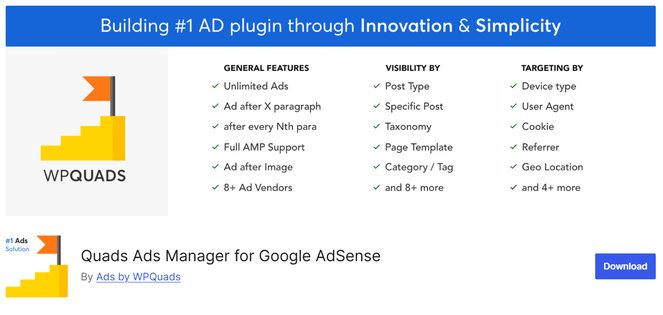
- Deep Google AdSense integration
- 12 ad positions to choose from
- AMP support built-in
- Multiple targeting conditions available
- Click fraud protection to help stabilize ad revenue
- Sell ad space directly from your blog
- And more…
Quads Ad Manager is another WordPress ad plugin with a 4.9/5 rating and over 20,000 active installs. It’s built for bloggers running Google AdSense who want a modern, fast interface and ads that work correctly on both standard pages and AMP pages without any separate setup.
The AdSense setup covers all of Google’s main ad types: display ads, in-feed ads, in-article ads, and Auto Ads. You manage sizes, placements, and responsiveness from a single screen, which makes the options panel faster to navigate than most plugin dashboards.
The 12 placement positions include some useful specifics, like inserting an ad after every third paragraph or after a specific image, rather than just a generic “after content” option.
AMP support is the standout feature I discovered during testing. Getting ads to show on AMP pages usually requires separate configuration. Quads Ad Manager handles it automatically, so your AdSense ads appear correctly on those pages without anything extra on your end.
Beyond AdSense, the plugin supports 8+ ad networks and includes a newer feature that lets you sell ad space directly from your blog, with pricing you set and advertisers buying placements through the plugin itself.
It’s worth knowing that some users have reported the plugin auto-creating pages and inserting them into the site navigation menu. The developers have addressed this in updates, but check your menu after activation to make sure nothing unexpected appears.
| Pros of Quads Ad Manager: | ✅ Free plugin covers AdSense setup, placement control, and AMP support ✅ 12 placement positions including paragraph-level and image-level targeting ✅ Supports 8+ ad networks beyond AdSense ✅ Easy-to-use options panel for beginners ✅ Sell ad space directly from your blog |
| Cons of Quads Ad Manager: | ❌ Some users have reported minor plugin errors ❌ Tracking reports and geo targeting require the Pro version |
Pricing: Free. You can also upgrade to Quads Ad Manager Pro starting at $89 per year for 1 site.
Why I Recommend Quads Ad Manager: Quads Ad Manager is a strong free option for bloggers running Google AdSense who want their ads working properly on both desktop and mobile, including AMP pages. If you’re monetizing with AdSense and getting solid mobile traffic, the built-in AMP support alone makes it worth installing.
7. Google Ad Manager: Best for Managing Multiple Ad Networks and Direct Ad Deals

- Support for video, native, and custom ad formats
- Powerful advertising management dashboard
- 30+ controls to choose the types of ads you want to appear on your site
- Ability to allow or block ads from appearing
- Advanced tracking and reporting
- And more…
Google Ad Manager is a free ad platform from Google for publishers who want more control over how ads run on their site and the ability to earn more money than basic AdSense.
Setting it up is more involved than installing a plugin. You’ll need to create an account, set up your ad spaces inside the platform, and add Google’s code to your WordPress site. It’s doable, but it takes more time and effort than simpler tools.
The main benefit is that you’re not relying on just one source for ads. You can bring in multiple ad partners, and Ad Manager automatically chooses the one paying the most for each ad spot.
It also supports different ad types like display, native, and video, which can help increase revenue if they fit your content.
If you sell ads directly, Ad Manager helps manage that too. You can run campaigns for advertisers while still filling the rest of your space with network ads, and it handles the priority based on the rules you set.
Note: I want to be honest about who Ad Manager is actually for. It’s built for large sites with a lot of traffic and steady ad views, so multiple ad networks can compete. If your blog is still small, it’s more than you need.
| Pros of Google Ad Manager: | ✅ Multiple networks compete for each impression, which can increase ad revenue ✅ Supports native, video, out-stream, and rewarded ad formats ✅ Handles direct ad deals and network fill from one dashboard ✅ Detailed reporting by network, advertiser, placement, and campaign ✅ Free for standard publisher accounts |
| Cons of Google Ad Manager: | ❌ More complex than any plugin on this list ❌ Built for large publishers — small blogs won’t see the benefit |
Pricing: Free. There’s also a premium version, Google Ad Manager 360 (GAM 360).
Why I Recommend Google Ad Manager: Google Ad Manager is best for large blogs with enough traffic to attract multiple ad networks. At that level, it can increase earnings by automatically showing the highest-paying ad for each impression. If you’re not at that stage yet, it’s better to start with a simpler plugin—you can always switch to Ad Manager later when your traffic grows.
Frequently Asked Questions About WordPress Advertising Plugins
If you’re new to advertising in WordPress and still have questions, here are the answers you may have been waiting for!
Do I need a plugin to add ads to my WordPress site?
No, but it’s much easier with one. You can paste ad code manually into your theme files, but you risk breaking your site and that code disappears every time you update your theme. A plugin stores the code separately so it stays put through updates, and gives you control over where and when ads appear.
What’s the difference between Google AdSense and Google Ad Manager?
AdSense is Google’s advertising program for publishers. You add the code, Google fills your ad slots automatically with relevant ads, and you get paid based on impressions and clicks.
Google Ad Manager is a more advanced platform that lets you manage your own ad inventory, including direct deals with specific advertisers. Most bloggers start with AdSense. Ad Manager becomes useful once you want to sell ad space directly rather than relying on Google’s automated system to fill it.
Which advertising plugin is best for beginners?
Advanced Ads is the easiest starting point if you want full ad management. It walks you through setup and has your first ad running in under a minute. If you just need to get AdSense code onto your blog without any learning curve, WPCode is even simpler: paste the code, choose where it goes, and you’re done.
Are there free WordPress advertising plugins?
Yes. Advanced Ads, WPCode, Ad Inserter, AdRotate Banner Manager, and Quads Ad Manager all have free versions available on WordPress.org. AdSanity is the only plugin on this list that requires a paid subscription from the start.
Can I use multiple advertising plugins at the same time?
You technically can, but it’s generally not a good idea. Running two ad management plugins at once can cause conflicts, slow down your site, and make it harder to track which placements are actually performing. Pick one that handles everything you need and stick with it. Most of the plugins on this list are comprehensive enough that you won’t need a second one alongside them.
What Is the Best WordPress Advertising Plugin?
For most bloggers, Advanced Ads is the right place to start. It has the best balance of ease of setup and actual control over where your ads go and what they earn. The free version covers everything a blogger needs to get started, and the Pro features are there when your ad revenue grows enough to justify them.
If you already have an ad network account and just need the code on your site without the risk of breaking anything, WPCode is the simpler option. You paste the code, set your conditions, and you’re done. Plus, the free version includes everything you need to get started.
If you’ve built a specific enough audience that brands would pay to reach your readers directly, Google Ad Manager is the platform that makes that revenue model possible. It’s more setup than a plugin, but it opens up a tier of advertising that automated networks alone can’t replicate.
That’s a wrap! If you liked this article, you may want to read our guide on how to increase your Google AdSense earnings. It’s filled with easy tips for boosting your click-through rate. You may also want to see our expert picks of the best WordPress affiliate plugins.
While you’re here, don’t forget to sign up for our email newsletter for more helpful blogging tips!
Such a great article, thank you for sharing this blog.