

W hen I first started my blog, I had a clear vision of how I wanted it to look. The problem was, I couldn't find a WordPress theme that fit my needs. That's what pushed me to explore WordPress page builder plugins, and it didn't take long to realize they were exactly what I needed.
Page builders completely changed the way I built my site. Instead of being stuck with a theme’s limitations, I could create custom layouts, add features, and design pages that actually matched my vision.
Since then, I’ve used page builders to create everything from simple WordPress blogs to full eCommerce websites.
To help you do the same, I tested more than 20 WordPress page builder plugins to see which ones are truly worth using. Below are the best drag-and-drop page builders for creating a professional-looking site that stands out—no design experience required.
Overview: Best Drag and Drop WordPress Page Builder Plugins
No time to read? No problem! You can use this comparison table to quickly find the best WordPress page builder for your blog:
| # | Plugin | Best For | Pricing |
| 1 | SeedProd | All-in-one page and theme builder that’s easy and powerful | $39.50/yr + Free |
| 2 | Thrive Architect | Creating high-converting landing pages and funnels | $99/year |
| 3 | Beaver Builder | Reliable, no-frills page building | $89/year + Free |
| 4 | Divi | Maximum design control and creative freedom | $89/yr |
| 5 | Elementor Pro | Quick, versatile page and theme building | $4.99/mo + Free |
| 6 | SiteOrigin | Free, precise layout control for technical users | Free |
| 7 | Visual Composer | Easy builder for beginners with built-in tools | $49/yr |
| 8 | Themify Builder | Developers and advanced users | $89/yr + Free |
| 9 | Live Composer | Free front-end builder for small or personal sites | Free |
Why Use a Page Builder in WordPress?
Page builders give you complete control over your site’s design without learning to code. While WordPress themes provide a starting point, they often come with rigid layouts and limited flexibility.
But, page builders let you break free from those restrictions so you can create exactly what you envision, all with a simple drag-and-drop interface.
WordPress already offers powerful customization, but page builders take it further by letting you:
- Design pages visually and see changes in real time
- Choose from hundreds of ready-made templates to get started fast
- Add custom sections like testimonials, pricing tables, or galleries with a click
- Create custom layouts with multiple columns to organize your content
- Switch designs easily without losing your content or starting over
With a page builder plugin, you’re no longer constrained by your theme—you can design professional, unique pages that truly fit your brand.
How I Test and Review WordPress Page Builder Plugins
I didn’t just read about these page builders—I actually installed each one and built test pages to see how they performed in real-life scenarios.
My goal was to figure out which builders are truly beginner-friendly but still powerful enough for more advanced blog layouts.
Here’s what I focused on while testing:
- Ease of Setup: How quickly could I install the plugin and start building my first page?
- Editor Experience: Was the drag-and-drop interface intuitive? Could I make changes without getting frustrated?
- Template Quality: Did the pre-made templates look good, and did they help me get started faster?
- Performance Impact: Did pages load quickly, or did the builder slow things down?
- Feature Depth: Could it handle things like responsive layouts, custom blog sections, and integrations?
- Compatibility: Did it play nicely with popular WordPress themes and other WordPress plugins?
- Pricing and value: How did the free plans stack up against the paid versions? Which one gave the best bang for your buck?
Testing them hands-on gave me a real sense of which page builders actually make blogging easier, and more fun, rather than just looking good on paper.
Now, let’s take a closer look at some of the best drag-and-drop page builders for WordPress to create a beautiful blog layout.
1. SeedProd: Best Overall Page Builder for WordPress

- Easy-to-use drag and drop builder
- Real-time visual live editor
- 350+ theme and page templates
- Pre-made content blocks and sections
- AI-powered features like content and image generation
- Super fast in performance
- Works with any WordPress theme
- And more…
- Only for WordPress
- The free version is limited
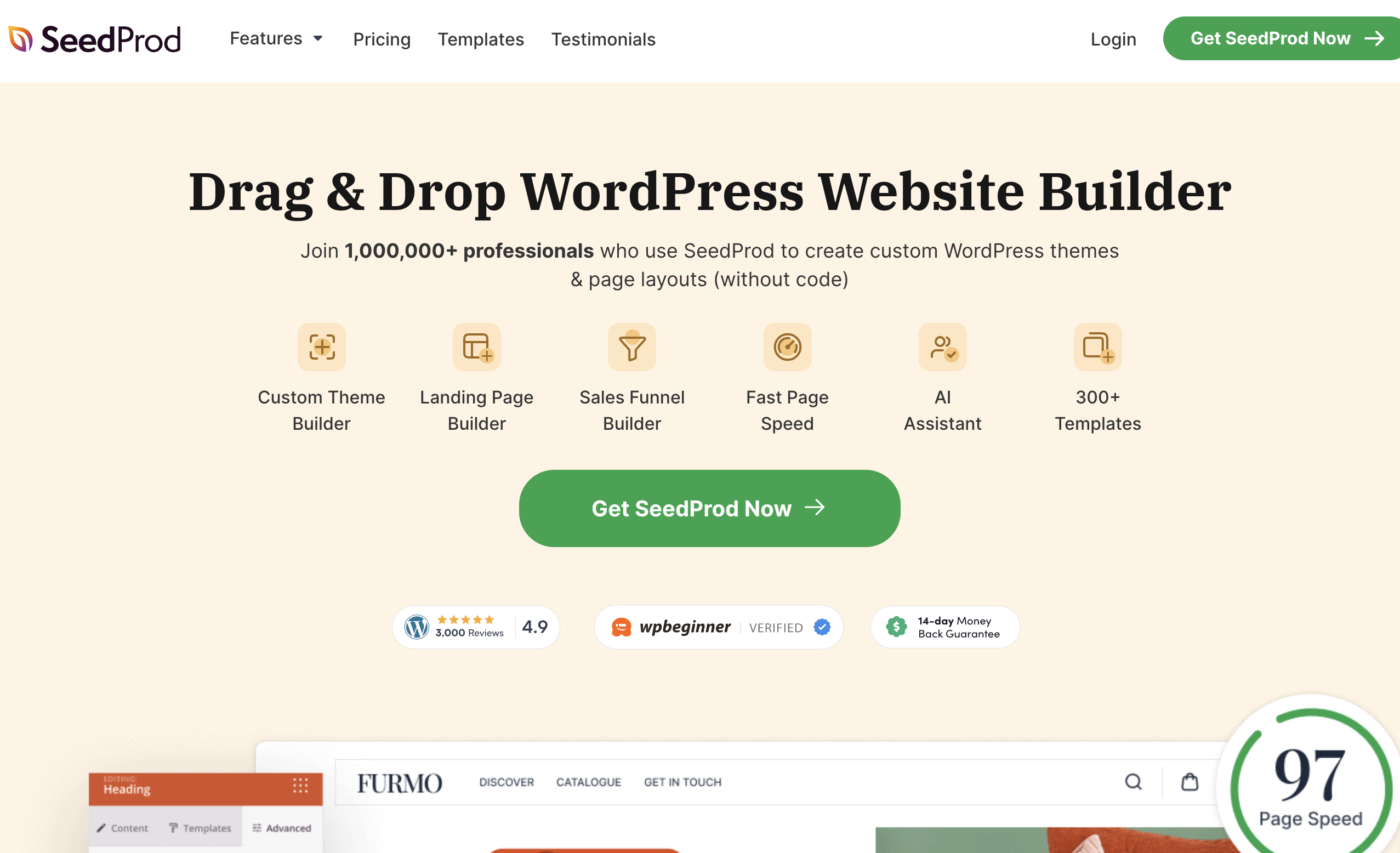
SeedProd is the #1 drag and drop website builder plugin for WordPress. Over 1 million professionals use SeedProd to create custom WordPress themes, layouts, and landing pages.
My Experience with SeedProd:
SeedProd is perfect if you’re new to page builders and want something that works right away. It combines ease of use with powerful features, so you can design landing pages or full site layouts without getting stuck in complicated settings.
When I started using it, the drag-and-drop editor felt natural from the first click. The templates made it simple to build pages quickly, and I liked that everything stayed lightweight and fast.
Features:
| Email Marketing Integration: | Yes |
| Responsive and Mobile Friendly: | Yes |
| Spam Protection: | Yes |
| Domain Mapping: | Yes |
| Pricing: | $39.50 – $239.60/year (Free Version Available) |
SeedProd won me over almost instantly. The first thing I noticed was how fast and easy everything felt. Its drag-and-drop editor is one of the cleanest I’ve used—no steep learning curve, which is rare for page builders with this many features.
To get started, you can choose a template from the built-in library. SeedProd offers 350+ templates for landing pages and full site layouts—from product launches to portfolios—and every template looked professional straight out of the box.
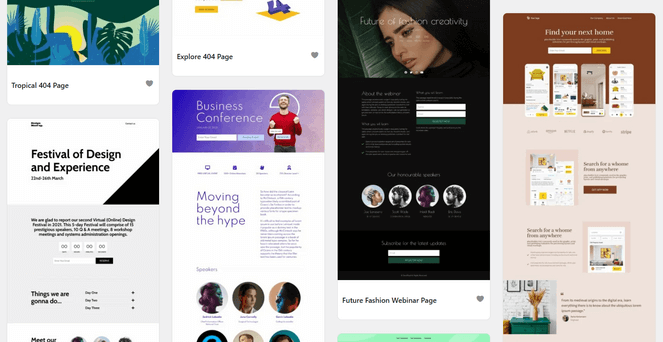
With SeedProd’s Theme Builder and theme templates, you can customize your entire site—not just individual pages. You can design your header, footer, homepage, blog page, single posts, etc. to create a consistent, professional look across your website.
On top of that, SeedProd comes with 90+ ready-made blocks, including headers, buttons, testimonials, countdown timers, image galleries, star ratings, newsletter signup form, and much more. Dropping a block onto a page and customizing colors and fonts took just a few clicks.
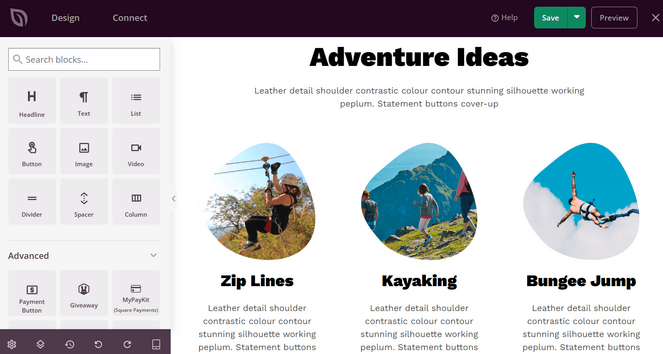
SeedProd also integrates with all the popular email marketing services, so adding an opt-in form to your page is effortless. Just connect your provider, drop the form onto your design, and anyone who signs up will be added directly to your email list—no extra plugins or manual steps needed.
For online stores, SeedProd works seamlessly with WooCommerce, and there’s even WooCommerce blocks you can use to create custom checkout pages, cart pages, product pages, and more.
SeedProd handles coming soon, maintenance mode, and 404 pages as well. While I was designing my site, activating maintenance mode gave visitors a clean placeholder page instead of a broken layout.
In addition, I love that SeedProd comes with an AI Site Builder. Just describe what your blog or business is about, and it instantly generates a professional-looking site—complete with images and starter content. From there, you just make a few tweaks to make it your own.
If you want a builder that’s powerful but still beginner-friendly, SeedProd is hard to beat. I’ve been using it for years, and I love it. I even wrote a complete SeedProd review if you want to learn more about it.
Why I Recommend SeedProd: SeedProd is a top choice for anyone who wants a fast, flexible page builder with great templates, helpful AI tools, and full theme-building options. Whether you’re a beginner or an experienced blogger, it’s one of the easiest builders to use—and it keeps your site running fast.
Want to try it out? There’s a limited free version of SeedProd available to download on WordPress.org.
2. Thrive Architect: Best for Building High-Converting Landing Pages

- 352+ professional landing page templates
- Pre-built conversion focused elements
- Dynamic personalization features
- Connects with WooCommerce
- Fast page speed
- A/B testing to analyze the performance of your pages
- Integration with email marketing tools
- And more…
- There is no free version available
- You need to pay more to access the theme builder
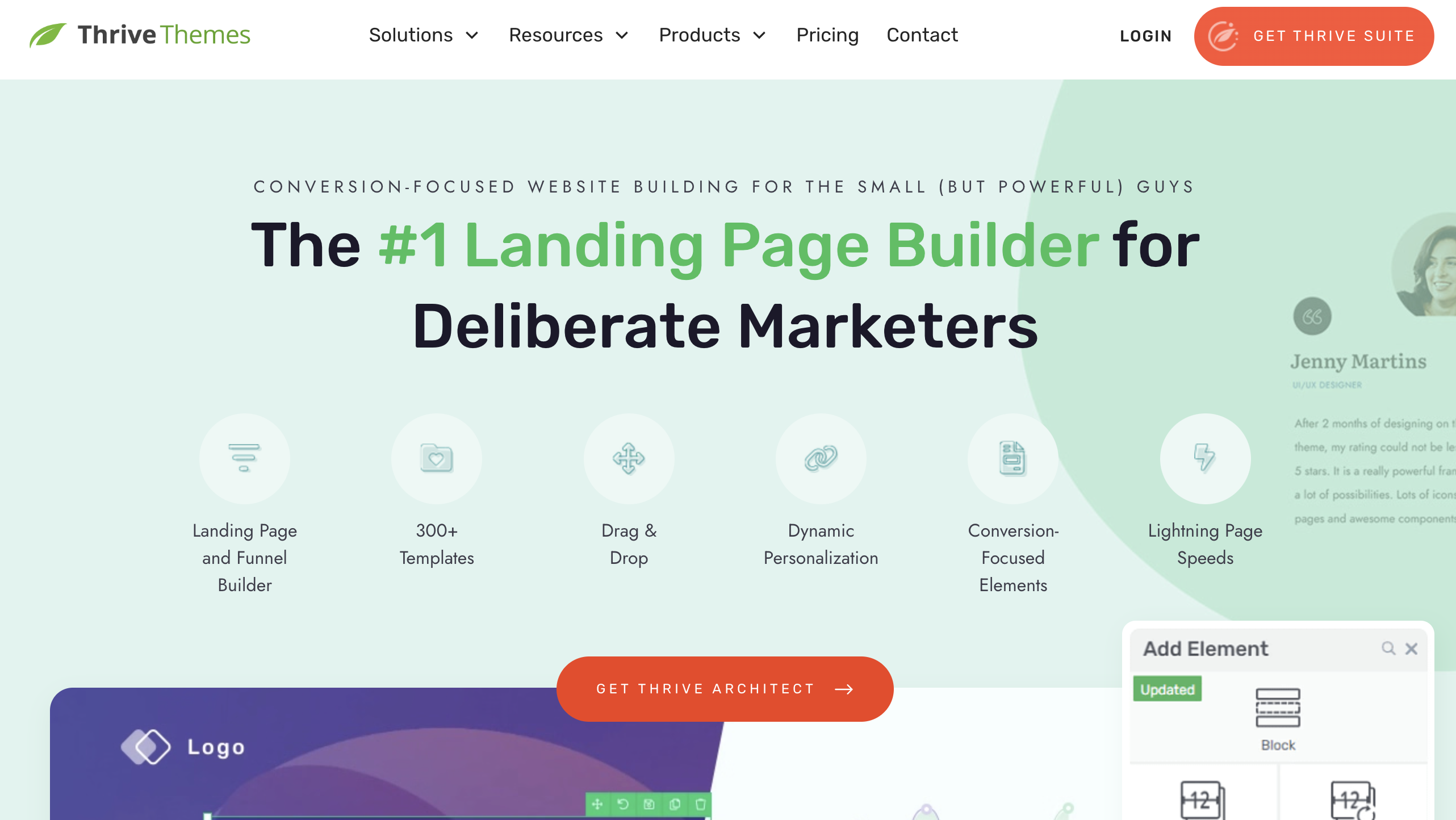
Thrive Architect is a powerful WordPress page builder for online businesses and blogs. It makes it easy to build high-converting landing pages and layouts.
My Experience with Thrive Architect:
Thrive Architect immediately stood out to me because it’s clearly built with marketing in mind. The elements, templates, and layout options are designed to help you generate leads, sell products, or promote your content.
I found it especially useful for building landing pages, sales pages, and funnels—especially if you’re using other Thrive Suite tools. It’s a great choice if conversions are your main focus.
Features:
| Front-End Visual Editor: | Yes |
| A/B Testing: | Yes |
| SEO Focused: | Yes |
| Pricing: | $99 – $299/year |
When I started using Thrive Architect, one of the first thing’s I noticed was the template library. It includes over 352 professionally-designed layouts built specifically for landing pages, opt-ins, and sales pages.
I appreciated that every template came with proven conversion elements already in place—opt-in forms, countdown timers, testimonials, call-to-action buttons, guarantee boxes, and more. Having these ready to go saved me hours compared to starting from a blank page.
The editing experience was just as smooth. I could adjust typography, change colors, and rearrange entire sections with simple point-and-click or drag-and-drop actions.

The dynamic personalization tools were another standout feature. For example, I set up a version of a landing page that showed a “Welcome, first time here?” headline to new visitors, while returning users saw a “Welcome back, ready to continue?” message with a different call to action. Small changes like these helped boost engagement because the content felt more relevant to each visitor.
After building my layout, I tried the A/B testing feature. Thrive Architect lets you create two page variations—like swapping a headline or button style—and automatically split traffic between them.
It tracks conversions for each version, making it easy to see what works. Even small tweaks can lead to higher signups or sales, so this kind of testing is a big advantage.
Finally, the integration with other Thrive tools like Thrive Leads, Thrive Quiz Builder, and Thrive Apprentice made it simple to build full marketing funnels. Everything works together smoothly, so you can go from collecting leads to segmenting your audience to converting them—all within the same ecosystem.
Why I Recommend Thrive Architect: Thrive Architect is one of the best page builders if your main goal is boosting conversions. It includes optimized templates, built-in testing tools, and seamless integration with the full Thrive Suite, so you can create high-converting funnels that all work together.
3. Beaver Builder: Best Page Builder for Reliability and Simplicity

- Beginner-friendly with easy setup
- Frontend editor with live preview
- 170+ page layout templates
- Save and reuse modules globally
- Shortcode and widget support
- Easy to switch themes without losing content
- Allows exporting custom templates to other sites
- Supports custom post types
- And more…
- Fewer templates and blocks than page builders like SeedProd
- The free version is limited
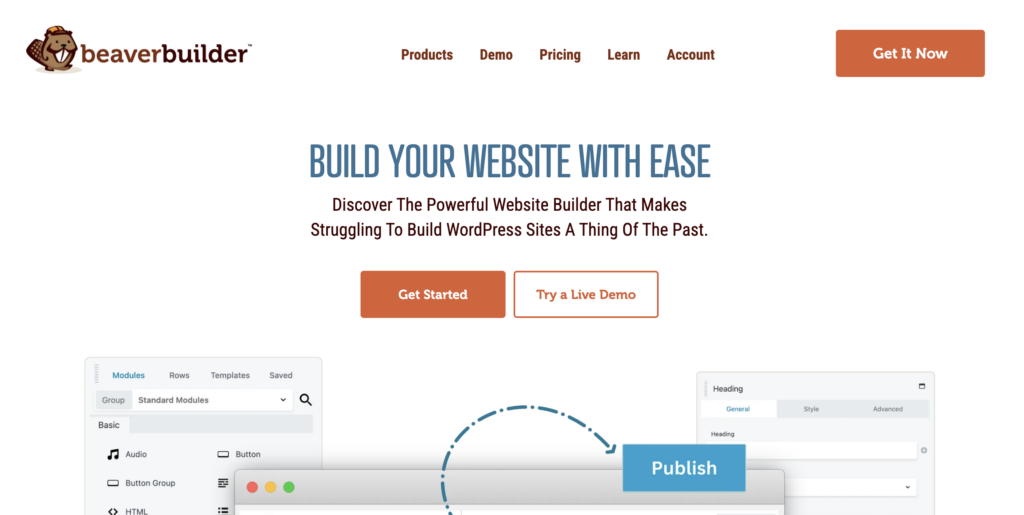
Beaver Builder is one of the most popular WordPress themes around. It’s trusted by millions of bloggers who use it’s drag-and-drop features to customize their sites.
My Experience with Beaver Builder:
Beaver Builder is perfect if you want a page builder that just works without surprises. It focuses on reliability and ease of use instead of flashy effects or hundreds of template options.
When I tested it, I appreciated how clean and predictable everything felt. The interface doesn’t overwhelm you, and the modules are easy to work with, making it a solid choice for anyone who values stability.
Features:
| Localization: | Yes (WPML integration) |
| WooCommerce Support: | Yes |
| Multisite Support: | Yes |
| SEO Optimization: | Yes |
| Pricing: | $89 – $546/year (Free version available) |
I installed Beaver Builder on a test site and learned how straightforward the setup process was. The dashboard guided me through the basics, and I was editing my first page within minutes.
The drag-and-drop interface works directly on the front end, so I could see my changes in real time. This made it much easier to fine-tune spacing, adjust button placements, and preview how everything looked before publishing.
I used several pre-designed templates to jumpstart my layout. The templates are clean and professional, though there aren’t as many options as you’d find in SeedProd, Thrive Architect, or Divi.
Once I selected a template, I started adding modules like buttons, content sliders, and callouts. Each module snapped into place smoothly, and the controls were easy to understand.

I tested the mobile responsive layouts by switching between desktop, tablet, and phone views. The live previews showed exactly how my page would look on different devices, which saved me a lot of guesswork.
After that, I explored the developer-friendly features like custom module creation. Even though I’m not a developer, I liked knowing that Beaver Builder could grow with my needs if I wanted to add more advanced functionality later.
Why I Recommend Beaver Builder: It’s stable, beginner-friendly, and avoids unnecessary complexity, making it easy to build pages without feeling overwhelmed. Beaver Builder is known for staying reliable through updates, so your layouts won’t break—and you can focus on creating content instead of troubleshooting.
4. Divi Builder: Best WordPress Page Builder for Extensive Design Flexibility


- Advanced visual builder technology
- 2,000+ page and layout templates
- 200+ pre-made page elements
- Multiple color and animation effects
- Beautiful shape dividers and transformations
- Bulk editing for blocks and modules
- Inline text editing
- Custom CSS control
- Can feel overwhelming to some users due to the amount of features
- If you ever want to stop using Divi, it can be hard to move your content
Divi is a powerful drag and drop page builder plugin and theme for WordPress. It’s built by Elegant Themes, well-known for their WordPress themes and plugins.
My Experience with Divi:
Divi is perfect if you want complete control over how your website looks. It gives you more customization options than most builders, so you can adjust nearly every detail—from font styles to spacing and background effects.
The template library is massive, with over 2,000 pre-made layouts. Once I got comfortable with the interface, I found I could build polished, unique pages that stood out.
Features:
| Split Testing: | Yes |
| eCommerce Support: | Yes |
| Multisite Support: | Yes |
| SEO Optimization: | Yes |
| Pricing: | $89 – $888/year |
I started testing Divi by browsing the template library. With over 2,000 pre-made layouts, I found tons of beautiful options for blogs, portfolios, business sites, and more. I picked a template that fit my project and customized it from there.
I loved that I could edit content directly on my website, instead of doing it on the backend and previewing the changes. I adjusted spacing, fonts, and colors to match my brand. Divi lets you control almost everything, so I could fine-tune each section until it looked exactly how I wanted.
The 200+ content elements made adding features simple. I inserted contact forms, portfolio grids, and image galleries without needing extra plugins. Each element came with its own set of design controls.
I also tested the dynamic content features. These let you pull in blog posts, product details, or custom fields automatically. It’s super useful if you’re building sites with lots of content or eCommerce products.
For more advanced control, I used the CSS editing tools. This let me add custom styles or adjust details that weren’t available in the visual controls. It’s helpful if you know a bit of code and want full flexibility.
One downside I noticed was that the sheer number of features can feel overwhelming at first. It took me some time to learn where everything was and how to use it efficiently.
Why I Recommend Divi: Divi shines if you love to customize. Its visual builder gives you complete creative control, so you can design truly unique, standout pages. It can feel overwhelming for beginners because of how much it offers, but if you want maximum flexibility, Divi has the tools to bring any idea to life.
5. Elementor Pro: Best for Easy, Flexible Page Building

- Visual form builder with integrations
- 86+ premium top notch widgets
- Over 100 custom templates
- Powerful theme builder
- Grid layouts and style options
- Fast performance on WordPress blogs
- AI-powered features
- Fewer templates, widgets, and customization options compared to other page builders
- Can slow down your website if you use too many Elementor widgets
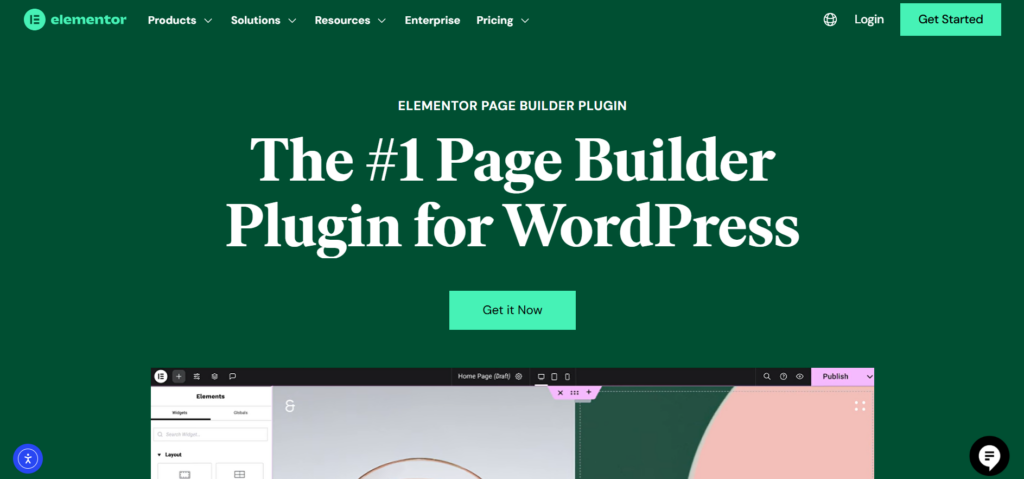
Elementor is one of the most popular WordPress drag and drop page builders for WordPress. There’s a free version and also a premium plugin to customize your blog layout and design quickly.
My Experience with Elementor:
Elementor Pro gives you everything you need in one package. You can build landing pages, design headers and footers, create popups, and customize layouts for mobile.
When I tested it, the interface felt polished right from the start. The drag-and-drop editor was smooth, and I could see my changes instantly as I worked.
Features:
| Widgetized Layout: | Yes |
| WooCommerce Builder: | Yes |
| Popup Builder: | Yes |
| Global Widgets: | Yes |
| Pricing: | $4.99 – $16.99/month (Free version available) |
I installed Elementor on a test site and started building a homepage from scratch. The live preview made it easy to see exactly how my page would look while I edited.
I could add buttons, forms, testimonials, image galleries, and pricing tables from the built-in widget selection. Adjusting spacing and alignment was simple too. I clicked on any element, tweaked the padding or margin, and the layout responded instantly.
The responsive design controls impressed me. I switched to mobile view and adjusted text size, button placement, and image spacing to make sure everything looked good on smaller screens.
Aside from pages, you can use Elementor to create a custom WordPress theme as well. Building a custom header and footer was easier than I expected. I used the theme builder, picked a template, customized the logo and menu, and applied it across the entire site.
WooCommerce support worked well. I added product grids, built a custom shop page, and adjusted the cart layout without touching any code.
Plus, Elementor comes with a built-in popup builder to help you get more subscribers. I created a simple email signup form, set it to appear after 10 seconds, and published it. The whole process took about five minutes.
Why I Recommend Elementor Pro: It’s easy to use and highly flexible, making it a great choice for anyone building a WordPress site. You can quickly create custom pages, adjust designs, and style layouts exactly how you want, all with an intuitive drag-and-drop interface. It’s powerful enough for advanced users but approachable for beginners.
6. SiteOrigin: Best Free Page Builder for Structural Control


- Free plugin with quick setup
- Uses WordPress widgets to add features
- Live editing for content and widgets
- Works with all WordPress themes
- Offers free themes built for the page builder
- Lacks true front-end visual editing (uses a side panel)
- Advanced widgets and features require purchasing add-ons
SiteOrigin Page Builder is a free WordPress drag and drop page builder. It allows you to create beautiful landing pages and customize the blog layout easily.
My Experience with SiteOrigin:
SiteOrigin is a solid choice if you’re comfortable working through settings panels and prefer precise layout control over flashy visual editing. It’s built for people who care more about structure than drag-and-drop simplicity.
I found it worked well once I understood the workflow, but it definitely feels more technical than other builders on this list. If you’re willing to learn the system, you get a lot of control without slowing down your site.
Features:
| History Browser: | Yes |
| Widgets Bundle: | Yes |
| Localization: | Yes (17 languages) |
| Pricing: | FREE |
Testing SiteOrigin felt different from other builders. Instead of clicking and editing directly on the page, everything happens through a sidebar editor that reminded me of the WordPress Customizer.
This approach gave me a lot of control, but it also meant a steeper learning curve. I had to preview changes instead of seeing them instantly on the page.
Once I got used to the interface, I really appreciated the row and column slider. It let me adjust the width of layout sections with a lot of precision, which is great when you want exact alignment.
SiteOrigin works with existing WordPress widgets, so I could drop in standard blocks without needing special add-ons. This keeps things simple, but I prefer page builders that include custom blocks so I can add new features to my blog easily.
I really liked the integrated history browser. It tracked my changes and made it easy to undo mistakes without losing progress.
Because it’s designed to work with any theme, I didn’t have to worry about compatibility issues. It worked best with SiteOrigin’s own themes, but it didn’t break anything when I used it elsewhere.
Why I Recommend SiteOrigin: SiteOrigin is free and gives you precise control over your layouts through a sidebar editor. It’s a good choice for users who want flexibility and detailed adjustments, though it has a steeper learning curve than more visual builders.
7. Visual Composer: Best for Beginners Who Want Built-In Tools

- Beginner-friendly setup
- Frontend editor with live preview
- 300+ pre-designed elements and content blocks
- 200+ professional WordPress templates for landing pages
- Theme building functionality
- Built-in email popup builder
- Intuitive and fast interface
- Works with any theme, page, and post type
- Interface differs from typical WordPress plugins
- Slight learning curve for beginners
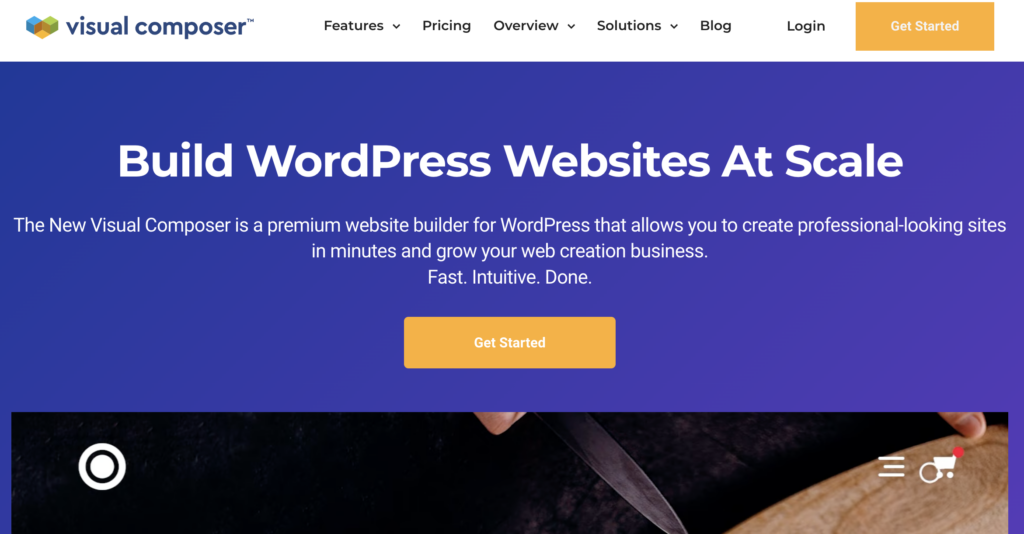
Visual Composer is a simple, user-friendly WordPress website builder. It makes customization easier with drag and drop interface, beautiful templates, and hundreds of content elements.
My Experience with Visual Composer:
Visual Composer is perfect if you’re starting out but want room to grow. It gives you real design control without drowning you in advanced options.
I found it easy to pick up once I got past the initial layout. The interface is clean, and you can build professional pages quickly.
Features:
| Stock Images: | Yes |
| Inline Editor: | Yes |
| Icon Libraries: | Yes |
| SEO Optimization: | Yes |
| Pricing: | $49 – $349/year |
When I first opened Visual Composer, I noticed the interface looked different from most WordPress plugins. So, it took a few minutes to get used to where everything was.
Once I figured out how the plugin works, the drag-and-drop builder felt smooth. I could add elements, move them around, and see my changes right away.
The Visual Composer Hub was a nice surprise. It gave me free content elements, templates, and stock photos I could use without leaving the editor.
I used one of the pre-made templates to speed things up. After that, I customized headers, footers, rows, and backgrounds to match my site’s style.
For users who want more, Visual Composer supports custom CSS and JavaScript. I didn’t need it, but it’s there if you want deeper customization.
Why I Recommend Visual Composer: It’s simple enough for beginners to get started with page building, yet flexible enough for more advanced projects. It takes a little time to learn, but the professional tools and features make it worth the effort.
8. Themify Builder: Best WordPress Page Builder for Developers

- 100s of professional ready-made page layouts
- Backend and frontend editor interfaces
- Beautiful animation and zooming effects
- Custom fonts and icons
- Ready-to-use modules
- Reusable layout parts
- Extensive add-ons
- Interface can feel dated compared to newer builders
- Free version has limited functionality
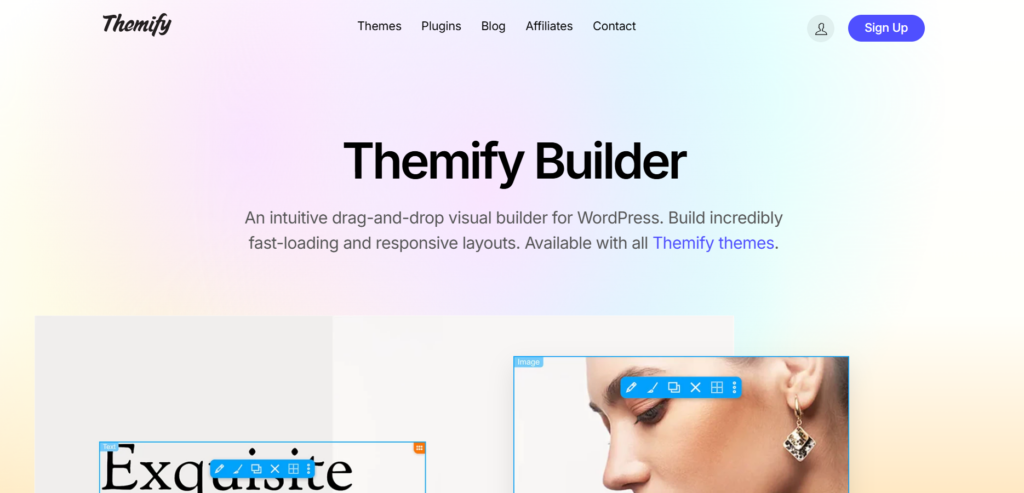
Themify Builder is another well-known, powerful WordPress page builder. It comes packed with 42 Themify themes, a theme builder, 11 Themify plugins, and more.
My Experience with Themify Builder:
Themify Builder is a solid choice if you want control over every detail of your site’s design. It offers both visual editing tools and developer-friendly options, making it ideal for users who want more than a basic drag-and-drop experience.
When I first tried it, I noticed it felt more advanced than some other page builders. The interface gives you real flexibility, though it takes a bit longer to learn compared to simpler tools.
Features:
| Cache System: | Yes |
| Multisite Support: | Yes |
| Localization: | Yes |
| SEO Optimization: | Yes |
| Pricing: | $89 – $249/year (Free version available) |
When I first tried Themify Builder, I was impressed by its flexibility, though it felt a bit more advanced than some other page builders. The drag-and-drop interface makes it easy to build pages visually, and the live front-end editing lets you see your changes in real time.
At the same time, you can dive deeper with the backend editor, custom CSS, or even PHP snippets if you want more control over your design. The front-end visual editor and backend drag-and-drop editor give you options. For example, I used the front-end editor for design tweaks and the backend editor when I needed to adjust structure.
Themify Builder includes tons of pre-built layouts and templates for rapid page creation. I picked a portfolio layout and quickly customized it with my own images and text. Plus, you can add pre-made modules like sign up forms, social media share buttons, service menu, sliders, and more.
I also like that Themify Builder includes a Display Conditions feature to show templates on specific pages. I was able to set a custom header to display only on blog posts and a different header for product pages.
In addition, Themify Builder has an extensive add-ons library for extra functionality. You can install add-ons for WooCommerce, countdown timers, infinite background, toggle, maps, and content restriction, just to name a few.
Why I Recommend Themify Builder: Themify Builder is best for developers and advanced users who want visual editing plus code-level customization. If you want control over both design and functionality, Themify Builder gives you the flexibility you need.
9. Live Composer: Best Free Visual Page Builder
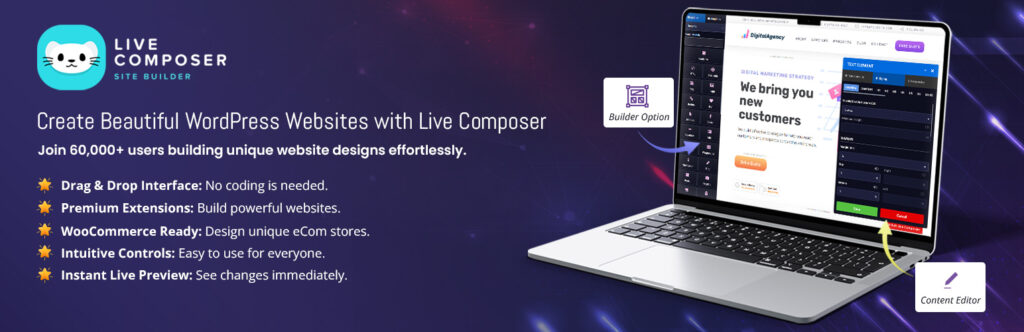

- WYSIWYG drag-and-drop editor
- User-friendly interface
- Ready-made content modules
- Fully responsive and mobile-friendly
- Premium addons and extensions available
- No pre-made themes or templates included
- Limited features without purchasing the extension pack
Live Composer is a completely free page builder for WordPress, with over 10,000 active installations. It offers a WYSIWYG drag-and-drop editor and pre-made modules for creating custom pages.
My Experience with Live Composer:
Live Composer is a solid choice if you’re looking for a free page builder that doesn’t lock essential features behind a paywall. It’s perfect for hobby bloggers, small personal sites, or anyone experimenting with WordPress who doesn’t want to invest in premium tools right away.
When I tested Live Composer, I appreciated that the entire builder is free and fully front-end. You edit directly on your page and see changes happen instantly, which makes designing feel more natural and less technical.
Features:
| Inline Editor: | Yes |
| WooCommerce Support: | Yes |
| SEO Optimization: | Yes |
| Localization: | Yes (63 languages) |
| Pricing: | $49 – $349/year |
With Live Composer, the drag-and-drop interface is intuitive. I opened the editor and immediately saw a side panel where I could insert content blocks.
The blocks include basic elements like text, images, buttons, and columns. I dragged a few onto the page and adjusted spacing and colors without any confusion.
Live Composer supports custom post types, which means you can build project pages, staff profiles, testimonials, or galleries. This adds flexibility beyond standard pages and posts.
The optional extension pack adds functionality like contact forms and video embeds. Without it, you’re limited to basic content blocks, which might not be enough for a business site or professional blog.
One big limitation I noticed was the lack of pre-made themes or templates. You start with a blank page, which gives you freedom but also means more work upfront if you’re building from scratch.
Why I Recommend Live Composer: It’s free, beginner-friendly, and a good fit for smaller sites that need simple layouts without advanced features.
WordPress Page Builder Plugin FAQs
What is a WordPress page builder?
A WordPress page builder is a plugin that lets you design and customize pages using drag-and-drop tools, no coding required.
Are page builders good for beginners?
Yes. Page builders like SeedProd and Beaver Builder are designed for beginners and make it easy to create professional pages without technical skills.
Do page builders slow down my site?
Some page builders can slow your site, but lightweight options like SeedProd are built for speed and keep your pages loading quickly.
Can I use a page builder with any WordPress theme?
Most page builders work with any WordPress theme, though some like Divi include their own themes for better integration.
Which page builder is best for eCommerce?
SeedProd and Elementor Pro both work well with WooCommerce and include pre-made blocks for building custom product pages.
Do I need a page builder if I already have a theme?
You don’t need a page builder, but it gives you more control over layouts and design options than most themes offer.
What is the Best WordPress Page Builder Plugin?
I believe SeedProd is the best WordPress page builder for most users. It combines speed, ease of use, and powerful features like AI tools, theme building, and 300+ templates—all while keeping your site fast.
If you want a reliable way to create custom pages without writing code, SeedProd makes the process effortless. Its beautiful templates and flexible page blocks help you launch professional pages quickly, and it works seamlessly with any WordPress theme or plugin.
Whether you’re a beginner or a more advanced user, SeedProd gives you the perfect mix of simplicity, performance, and power. Plus, for those on a budget, there’s a free version you can use to get started.
I hope this article helped you find the best drag-and-drop page builders for WordPress. You may also want to check out our expert picks of the best SEO plugins and tools for bloggers, or our guide on landing page optimization that offers easy tips to boost conversions.
And don’t forget to sign up to our email newsletter so you can get useful content like this sent right to your inbox!
The elaborate explanations are amazing. Makes it easier to understand the whole topic.
Thanks Dustin, glad it helped!
Hi,
Wonderful post on drop and drag builder for WordPress! Explained every point with images given
Thank you so much for such a detailed explanation.