

I f you've ever landed on a long blog post, skimmed the first few paragraphs, and left because you couldn't quickly tell if it had what you needed — you already know why table of contents plugins exist. It's not that the content wasn't there. It's that there was no easy way to find it.
I realized my own readers were probably doing the exact same thing on my blog. I was putting a lot of work into longer, in-depth posts, but without any way to navigate them, most people were likely bouncing before they even gave the content a chance.
A table of contents changes that. It shows readers exactly what’s covered before they commit to reading, and lets them jump straight to the section they actually care about. Once I started adding one to my longer posts, the difference in how people engaged with my content was noticeable.
So I went looking for the best table of contents plugins for WordPress. After testing a range of options, I’ve put together this list of the seven best ones — whether you want something that works automatically out of the box, something built into your SEO plugin, or something with more design flexibility.
Overview: Best Table of Contents Plugins
If you don’t have time to read the full reviews, check out this handy comparison table to quickly find the right table of contents plugin for your WordPress blog:
| # | Plugin | Best For | Pricing |
| 1 | All in One SEO | SEO + table of contents combo | Free + $49.50/year |
| 2 | Table of Contents Plus | Free automatic table of contents | Free |
| 3 | Heroic Table of Contents | Per-post TOC customization | Free |
| 4 | Easy Table of Contents | Sticky sidebar TOC | Free + $49/year |
| 5 | Joli Table of Contents | Speed + clean design | Free + $39.99/year |
| 6 | LuckyWP Table fo Contents | Flexible TOC insertion methods | Free |
| 7 | CM Table of Contents | Beginners | Free + $39/year |
How I Test and Review Table of Contents Plugins
I’ve been testing WordPress plugins for years, and table of contents plugins are one of those categories where they all look pretty similar until you actually put them on a real blog.
Most of them will detect your headings and generate a list of links. That part is easy. What I’m looking for is everything that happens after that.
For example, does the plugin drop the table of contents exactly where you want it, or does it always land in the same spot no matter what? Does it look clean and readable out of the box, or does it take a lot of fiddling to match your blog’s style?
These are the things readers won’t notice if they’re done right — but they’ll definitely notice if they’re done wrong.
Here’s what I focus on when reviewing table of contents plugins:
- Ease of setup: Can you get a working TOC on your posts in under five minutes, without touching any code?
- Placement control: Does it auto-insert, or can you place it exactly where you want it?
- Customization options: Can you control which heading levels appear and adjust the look to match your blog?
- Mobile responsiveness: Does the table of contents look good and work properly on phones and tablets, not just on a desktop?
- Gutenberg compatibility: Does it work natively with the WordPress block editor, or does it rely on older methods?
- Performance: Does it only load what it needs on posts that actually have a table of contents, or does it slow down every page on your site?
Testing each plugin this way means you can skip the trial and error and go straight to the one that works best for your blog.
Before we dive into the list, let’s go over in more detail why it’s important to have a table of contents plugin…
Why Do You Need a WordPress Table of Contents Plugin?
According to statistics, 73% of visitors skim rather than read a blog post thoroughly. They’ll scan the headings, jump to the section that answers their specific question, and leave once they’ve got what they need. That’s not a problem — that’s just how people read online.
That’s why adding a table of contents (TOC) to your blog posts is so important. A table of contents tells your readers what’s covered in the article, what order it’s in, and how to get directly to what they need.
This keeps readers on your page longer, reduces the number of people who bounce because they can’t find what they came for, and signals to Google that your post is organized and comprehensive.
Plus, adding a table of contents can help improve your blog SEO, too. That’s because search engines like Google can display jump-to-section links in your website’s search results.
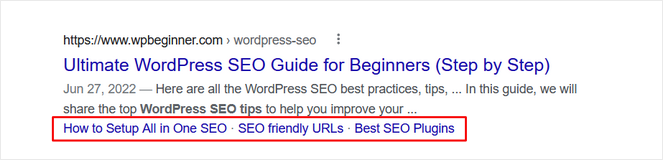
These ToC links take up more visual space in search results and result in higher organic click-through rates (CTR). This lets Google know that people enjoy your content and find it helpful. With a higher CTR, your blog will rank higher in search results, and you can increase your organic traffic.
With that said, let’s look at my picks of the best table of contents plugins for WordPress.
1. All in One SEO (AIOSEO): Best Table of Contents and SEO WordPress Plugin

- Powerful SEO toolkit with a table of contents block built-in
- Easy to set up and use
- TOC can be inserted anywhere in WordPress pages and posts
- Automatically detects headings and generates TOC with anchor links
- Customization options for table of contents
- Supports WooCommerce SEO
- AI-powered writing tools
- And much more…
All in One SEO (AIOSEO) is one of the best SEO WordPress plugins used by over 3 million websites, and most bloggers don’t realize it comes with a built-in table of contents block. This makes adding a custom table of contents anywhere in your blog posts super easy. It’s what we use here on Blog Tyrant!
To add a table of contents, all you need to do is click on the ‘Add’ block button in the WordPress editor and choose AIOSEO’s Table of Contents block.
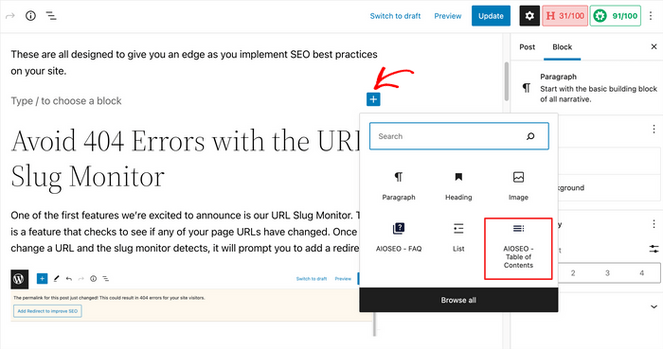
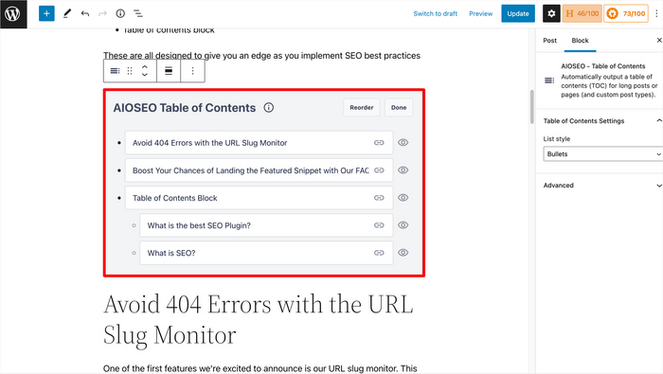
When you add it to a post, it automatically detects your headings and generates anchor links for each one. You can customize which headings appear, edit the display text for individual TOC items without changing the actual heading in your post, hide any headings you don’t want included, and more.
That last feature is genuinely useful because sometimes a heading makes sense in the flow of the post but doesn’t need to be in the TOC.
What sets AIOSEO apart from standalone TOC plugins is the SEO layer underneath it. For example, it adds How To schema markup for step-by-step tutorial posts, which can help those articles appear as enhanced results in Google, which is something most dedicated TOC plugins can’t offer.
And because the TOC is part of AIOSEO, you’re also getting the plugin’s broader toolkit — on-page SEO analysis, keyword tracking, internal linking assistant, content decay tracking, Semrush integration, XML sitemaps, and more — all without leaving your WordPress dashboard.
For bloggers who care about both readability and search rankings, that combination is hard to beat.
Note: AIOSEO is a full SEO plugin. If all you need is a table of contents, it may be more than you need. But if you don’t already have an SEO plugin on your blog, AIOSEO handles both from day one. To learn more, you can check out my complete AIOSEO review.
If you want a closer look, here’s a quick video walkthrough showing how easy AIOSEO makes it to add a ToC to your posts:
| Pros of All in One SEO: | ✅ Complete SEO plugin + powerful table of contents feature included ✅ TOC can be inserted anywhere in WordPress pages and posts ✅ Ability to customize display text and hide headings in TOC without touch your post content ✅ How To schema markup can earn your tutorial posts enhanced results in Google ✅ Advanced SEO features like XML sitemaps, linking assistant, keyword tracking, image SEO, and more |
| Cons of All in One SEO: | ❌ It’s a full SEO plugin — more than you need if a TOC is all you’re looking for ❌ You can only run one SEO plugin at a time, so it replaces whatever you’re using now |
Pricing: AIOSEO pricing starts at $49.50/year. The table of contents feature is also available in the free version of AIOSEO that you can get started with.
Why I Recommend All in One SEO: All in One SEO is best for bloggers who want a table of contents without adding another plugin to their site. If you’re already using AIOSEO for SEO — or planning to — the TOC block is built in and ready to use. You get a cleaner plugin setup and a direct SEO advantage that standalone TOC plugins can’t match.
2. Table of Contents Plus: Best Free Automatic Table of Contents Plugin

- Completely free table of contents plugin
- Automatically adds a table of contents to long articles
- Simple and easy to set up
- Offers multiple customization options and color schemes
- Supports smooth scrolling to anchor links
- And more…
Table of Contents Plus is a popular, free table of contents plugin for WordPress, and it earns its place on this list by doing exactly what it promises: automatically adding a table of contents to your posts with almost no setup required.
Once you activate it, the plugin starts working immediately. By default, it inserts a TOC on any page or post that contains four or more headings. You don’t need to add a block or a shortcode to each post. Configure it once in the settings and it handles the rest across your entire blog.
When I was testing it, I discovered the settings give you solid control: you can change the minimum number of headings required to trigger the TOC, choose which heading levels to include, set the positioning, and switch between numbered and bullet-style lists.
It’s not the most visually polished plugin on this list, but the options cover everything most bloggers actually need.
One feature that sets Table of Contents Plus apart is its built-in sitemap generation. Alongside the TOC functionality, it outputs HTML sitemaps for your pages and categories using simple shortcodes. For bloggers who want both features without installing separate plugins, that’s a useful bonus.
It’s worth knowing that Table of Contents Plus doesn’t have a native Gutenberg block. It works through WordPress’s content filter, which means reliable integration with the block editor — but you won’t get a visual block to drag and place the way some newer plugins allow.
For most bloggers who want auto-insertion, that won’t matter. If you need the TOC in a specific spot within a post, there’s a TOC shortcode that handles that.
| Pros of Table of Contents Plus: | ✅ Auto-inserts on qualifying posts, no per-post setup required ✅ Completely free — no premium version ✅ Shortcodes for manual placement and per-post exclusions ✅ Customization options included ✅ Built-in HTML sitemap generation |
| Cons of Table of Contents Plus: | ❌ Limited visual styling options ❌ No native Gutenberg block |
Pricing: Free.
Why I Recommend Table of Contents Plus: Table of Contents Plus is best for bloggers who want a free, reliable, zero-maintenance TOC that works automatically without touching each post. It’s been around long enough to prove itself, and the built-in sitemap feature is a genuine bonus.
3. Heroic Table of Contents: Best for Per-Post TOC Customization
- Automatically generates the table of contents
- Ability to place the ToC anywhere
- 4 pre-made styles and multiple customization options
- Option to expand and collapse the ToC
- Responsive and SEO-friendly
- And more…
Heroic Table of Contents is a free Gutenberg-native TOC plugin, and what I love about it is how much control it gives you over the look and behavior of your TOC directly inside the block editor.
The plugin adds a native WordPress block that you drop into your posts wherever you want the TOC to appear. Once placed, it automatically detects all the headings in your content and builds a linked list — no settings pages to visit, no global configuration to manage.
You can choose from four pre-designed styles, pick whether to show a bulleted, numbered, or plain list, and decide if you want the TOC to be collapsible. Everything happens right inside the editor.
I like how Heroic handles heading management as well. You can hide specific headings from the TOC or relabel them to show shorter text in the list, without touching the actual heading in your post.
The plugin also supports Template Mode, which is useful if you’re building with a block theme and want the TOC to appear automatically through a post template rather than inserting it manually into each post.
Plus, the plugin is mobile-friendly, ensuring that your table of contents looks great on any device your visitors use.
| Pros of Heroic Table of Contents: | ✅ Native Gutenberg TOC block with editor-level controls ✅ Four table of content styles to choose from ✅ Ability to hide or relabel headings without editing post content ✅ Collapsible table of contents option ✅ Completely free to use |
| Cons of Heroic Table of Contents: | ❌ No auto-insertion, must be added per post ❌ Limited integration with other WordPress plugins |
Pricing: Free.
Why I Recommend Heroic Table of Contents: Heroic Table of Contents is best for bloggers who write in the block editor and want a clean, styled TOC they can manage at the post level. If you want to hide or relabel specific headings without touching your content, it’s one of the most straightforward ways to do that.
4. Easy Table of Contents: Best for a Sticky Sidebar Table of Contents
- Easy to use and set up
- Automatically generates table of contents
- Offers a sticky sidebar table of contents
- Built-in themes and customization options
- Supports smooth scrolling
- And more…
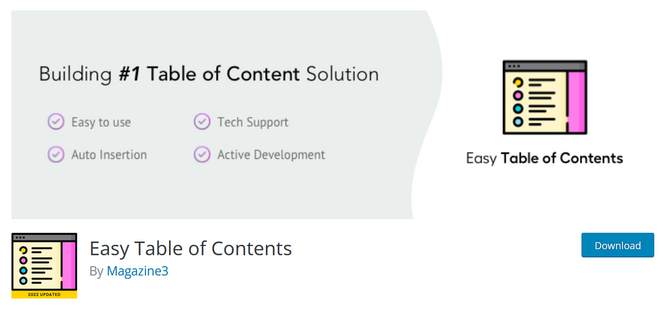
Easy Table of Contents is one of the most widely-used TOC plugins available, and the feature that keeps bloggers coming back to it is the sticky sidebar widget — a floating table of contents that stays visible as readers scroll through your post.
I think the plugin handles the basics well: it auto-inserts a TOC at the top of your posts, detects heading levels, supports smooth scrolling, and gives you multiple visual themes to choose from with customizable colors.
You can also toggle between numbered and bullet lists, set a minimum content length before the TOC kicks in, and control exactly which heading levels appear. In addition, setup takes a few minutes and the plugin runs across your entire site once configured.
As I mentioned earlier, where Easy Table of Contents pulls ahead of simpler options is the fixed widget. You can add a TOC to your sidebar that stays anchored as readers scroll — and it highlights the current section automatically, so readers always know where they are in the post.
For long tutorials or step-by-step guides where readers move back and forth between sections, that kind of contextual navigation is genuinely useful.
The plugin also plays well with popular page builders. It’s been tested with Elementor, Divi, WPBakery, and the block editor, which makes it a reliable choice regardless of how your blog is built.
| Pros of Easy Table of Contents: | ✅ Sticky sidebar TOC that highlights the current section ✅ Auto-inserts across your entire WordPress blog ✅ Multiple visual themes with customizable colors ✅ SiteNavigation schema support ✅ Mobile responsive and compatiable with popular page builders |
| Cons of Easy Table of Contents: | ❌ It can slow down your site ❌ Features like the sticky TOC and native Gutenberg block are locked behind the premium version of the plugin |
Pricing: Free version available. Pro starts at $49/year for a single-site license.
Why I Recommend Easy Table of Contents: Easy Table of Contents is best for bloggers who want auto-insertion now and a sticky sidebar TOC down the line. The free version handles the basics well, and the Pro upgrade adds the floating widget that stays visible as readers scroll.
5. Joli Table of Contents: Best for Speed and Clean Design
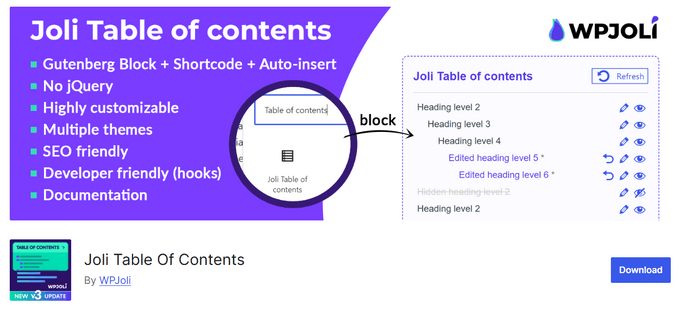
- Auto-insert tables of contents with smart heading detection
- Gutenberg block with inline editing
- Built for fast performance
- Color palettes to make styling simple
- Smooth scrolling available
- And more…
Joli Table of Contents is a performance-focused WordPress TOC plugin, and it’s quickly built a strong reputation among bloggers who care about both site speed and how their content looks.
Most TOC plugins rely on jQuery, which adds weight to every page that loads it. Joli doesn’t. It’s built without jQuery dependency, loads its CSS and JavaScript only on pages where a TOC is present, and keeps everything minified. For bloggers who are already careful about performance, that matters more than it might sound.
The plugin supports three insertion methods — auto-insert, a Gutenberg block, or a shortcode — so it fits whatever workflow you prefer.
The design side is where I think Joli really shines. Most TOC plugins ask you to configure colors, borders, backgrounds, and fonts one by one. Joli uses a single accent color system instead, you pick one color and it styles roughly 90% of the TOC automatically. The result looks cohesive and polished without a lot of effort.
Plus, it includes dark mode support out of the box, which is a thoughtful touch for blogs that offer a dark mode toggle.
One feature I haven’t seen in many other plugins on this list: Joli can display an estimated reading time in the TOC header. For readers deciding whether to commit to a long post, that small detail is super helpful.
| Pros of Joli Table of Contents: | ✅ Lightweight and fast ✅ Offers auto-insert, Gutenberg block, and shortcode for placing TOC ✅ Single accent color styles the entire TOC automatically ✅ Reading time display in the TOC header ✅ WPML-compatible for multilingual blogs |
| Cons of Joli Table of Contents: | ❌ While styling your TOC is easy, the plugin offers fewer customization options compared to other plugins ❌ Advanced features like custom post type support require a Pro plan |
Pricing: There is a limited free version available. There’s also a premium version that starts at $39.99/year.
Why I Recommend Joli Table of Contents: Joli Table of Contents is best for bloggers who want a fast, polished TOC without spending time configuring individual style settings. If site performance is a priority and you want your TOC to look great with minimal effort, Joli delivers both.
6. LuckyWP Table of Contents: Best Free Plugin for Flexible Insertion
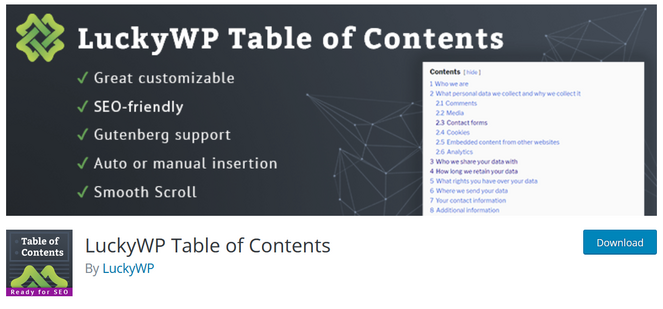
- Auto and manual table of contents insertion
- Customization options and pre-made color schemes
- Optional smooth scrolling
- Pretty URL anchors for sharable links
- SEO-friendly and includes RTL support
- And more…
LuckyWP Table of Contents holds one of the highest user ratings of any TOC plugin in the WordPress directory — a near-perfect 4.9 stars across nearly 900 reviews — and it earns that rating by being genuinely flexible about how and where you insert your TOC.
Most TOC plugins give you one or two ways to add a table of contents to a post. LuckyWP gives you four: automatic insertion, a Gutenberg block, a shortcode for the classic editor, and a toolbar button. You can mix and match depending on the post, or set a global default and override it per post when needed.
This plugin comes with multiple color schemes so that you can match your table of contents to your blog design. For example, you can choose from options like light, dark, white, and transparent – or simply inherit the look from your theme.
You can also customize the table of contents to your needs. You can edit the labels, choose a hierarchical or linear view, change the font size, skip headings by level or text, customize the link colors, and more.
I think the noindex wrapping option is a nice touch too. You can prevent search engines from indexing the TOC links separately, giving you a bit more control over how your content is crawled.
| Pros of LuckyWP Table of Contents: | ✅ Four insertion methods: auto, Gutenberg block, shortcode, or toolbar ✅ Multiple color schemes and font customization ✅ Pretty URL anchors for cleaner, shareable links ✅ Search engine friendly ✅ Only loads scripts on pages where a TOC appears |
| Cons of LuckyWP Table of Contents: | ❌ Fewer advanced features compared to some other plugins ❌ Some users report experiencing glitches with certain WordPress themes |
Pricing: Free.
Why I Recommend LuckyWP Table of Contents: LuckyWP is best for bloggers who want maximum flexibility in how their TOC is inserted and a well-supported plugin that requires no premium upgrade. Its near-perfect rating across hundreds of reviews reflects how consistently it works across different WordPress setups.
7. CM Table of Contents: Best Free TOC Plugin for Beginners
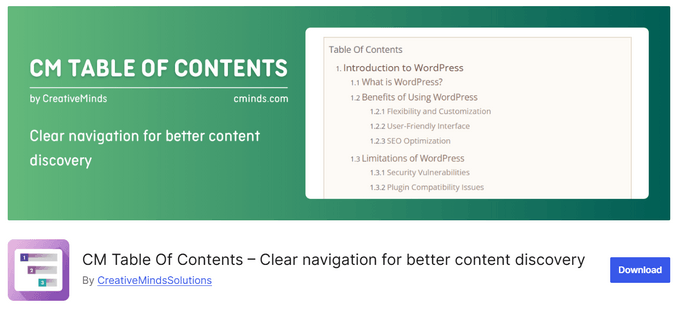
- Automatically creates and inserts a table of contents
- Easy onboarding wizard for setup
- Basic TOC styling options
- Offers a "Back to Top" arrow/button
- Supports shortcode to manually insert TOC
- And more…
CM Table of Contents is a beginner-friendly TOC plugin with a setup wizard that walks you through the configuration process step by step — a practical approach for bloggers who find settings pages overwhelming.
During testing, I found that the setup wizard helps you configure the TOC title, choose your list type, set basic styling options, and decide which heading levels to include. Then, the plugin detects headings in your posts and pages and builds a navigable linked list from them.
What makes it a bit different from others on this list is the built-in back-to-top button. As readers scroll through a long post, a button appears that takes them straight back to the top of the page and the TOC.
For long-form content where readers scroll deep before deciding they want to jump to a different section, that small addition improves the experience without needing a separate plugin.
| Pros of CM Table of Contents: | ✅ Step-by-step setup wizard ✅ Automatic table of contents insertion on posts and pages ✅ Built-in “Back to Top” button ✅ Responsive design ✅ Ordered and unordered list options |
| Cons of CM Table of Contents: | ❌ Limited customization options ❌ Smaller user base compared to the other plugins on this list ❌ Advanced features like collapsible sections require the Pro version |
Pricing: Free. There’s also a premium version available, which starts at $39/year.
Why I Recommend CM Table of Contents: CM Table of Contents is best for bloggers who are just getting started and want a guided setup experience. While this plugin is a bit basic, the back-to-top button is a convenient feature that saves you from installing a separate plugin for that functionality.
WordPress Table of Contents Plugin FAQs
What is the easiest way to add a table of contents in WordPress?
The easiest way is to use a plugin like Table of Contents Plus or All in One SEO. Table of Contents Plus automatically adds a TOC to any post with four or more headings, no per-post setup required. AIOSEO gives you a TOC block in the Gutenberg editor that you can add to specific posts in a few clicks.
Does a table of contents improve SEO?
Yes, in a few ways. A well-structured TOC creates anchor links for each heading, which can show up in Google search results as jump links — the clickable lines beneath a result that take users directly to a specific section of your page. Jump links can increase your click-through rate from search. A TOC also signals to Google that your post is well-organized and comprehensive, which supports your content’s overall relevance signals.
Can I create a table of contents without a plugin?
You can, but it requires manual work. You’d need to add HTML anchor tags to each heading in your post, then write out the linked list by hand. Every time you add or rearrange headings, you’d need to update the TOC manually. For most bloggers, a plugin is a much more practical choice — it handles all of that automatically.
Will a table of contents automatically update when I add new headings?
With most plugins on this list, yes. Plugins like AIOSEO, Table of Contents Plus, LuckyWP, and Easy Table of Contents detect your headings dynamically, so if you add or remove a heading, the TOC updates automatically. The exception is if you’ve manually edited individual TOC items — those customizations may need to be updated by hand.
Is a free TOC plugin good enough?
For most bloggers, yes. Table of Contents Plus, Heroic Table of Contents, and the free version of AIOSEO all cover the core functionality, such as automatic heading detection, anchor links, and basic styling. You’d typically look at a paid version if you want a sticky or floating TOC, advanced design customization, or custom post type support.
What is the Best WordPress Table of Contents Plugin?
For most bloggers, All in One SEO is my top recommendation. If you don’t already have an SEO plugin on your blog, AIOSEO is the obvious starting point. You get a built-in TOC block plus a full suite of SEO tools in one plugin, so you’re not piecing things together from multiple places.
The free version of AIOSEO covers the essentials well, including the table of contents feature. If you want to get more serious about growing your search traffic, the premium version is worth the upgrade.
If you already have an SEO plugin and just want a dedicated table of contents, Table of Contents Plus is the simplest free option. Install it once, configure it once, and it automatically handles the rest across your entire blog.
And if you want more control over how your TOC looks — styled templates, collapsible options, the ability to hide or relabel individual headings — Heroic Table of Contents gives you all of that inside the block editor, completely free.
That’s a wrap! I hope this list helped you find your blog’s best table of contents plugin. Now, your readers can easily navigate your posts, and you can improve your WordPress SEO too. If you enjoyed this post, you might want to check out our list of the best related posts plugins for WordPress or our guide on how to structure your blog posts.
And don’t forget to sign up for our email newsletter so you can get useful content like this sent right to your inbox!
0 Comments
Join in. The comments are closed after 30 days.