

I f you're running a blog and planning to host events, classes, or meetups, you've probably already discovered that WordPress doesn't come with a built-in way to display and manage them.
I ran into this myself when I first started looking for a way to show upcoming events on my own WordPress blog.
There are a lot of calendar plugins out there, but figuring out which one actually fits your needs — whether that’s scheduling appointments, selling event tickets, or just displaying a simple calendar — takes more digging than you’d expect.
After testing the top options, I put together this list of the best WordPress calendar plugins to help you find the right fit for your blog and your goals.
Quick Picks: Best WordPress Calendar Plugins
No time to read? No problem! Check out this handy comparison table to quickly find the right calendar plugin for your needs:
| # | Plugin | Best For | Pricing |
| 1 | Sugar Calendar | All-in-one calendar and event management | $49.50/yr + Free |
| 2 | The Events Calendar | Large organizations with high-volume events | $149/yr + Free |
| 3 | My Calendar | Accessibility-focused calendars | Free |
| 4 | Event Calendar by Timely | Beautiful calendars on a budget | Free (up to 25 events) |
| 5 | Booking Calendar | Accepting bookings and appointments | Free |
| 6 | EventON | Information-rich event pages | $40 (add-ons extra) + Free |
| 7 | Simple Calendar | Adding basic Google Calendars in WordPress | Free |
Why Use a WordPress Calendar Plugin?
Using a WordPress calendar plugin makes managing events a lot more straightforward, and it can have a real impact on how many people actually show up.
Here are a few reasons why bloggers in particular find them so useful:
- Promote your events effortlessly. A calendar gives your visitors a clear, visual way to see what’s coming up. If you’re running an online course, a workshop, or a meetup, putting it on a calendar creates buzz and makes it easy for people to plan ahead and sign up.
- Take the hassle out of event management. Whether you need people to buy tickets, register for a class, or book an appointment, a calendar plugin handles the logistics for you. The easier you make it for someone to sign up, the more people will actually do it.
- Learn what your audience wants. Most calendar plugins collect data on registrations and attendance, which tells you a lot. You can see which events fill up fast and which ones don’t get much traction, and use that to make smarter decisions about what to run next.
Whether you’re a blogger hosting virtual events or a local business managing in-person appointments, the right calendar plugin can save you time and help you grow your audience.
How I Test & Review WordPress Calendar Plugins
I’ve spent a lot of time testing calendar plugins because I know how much the wrong choice can slow you down. Setting up and managing events takes real effort, and the last thing you want is to realize halfway through that the plugin can’t do what you need.
When I first started comparing options, I was surprised by how much they varied. Some made it incredibly easy to get a calendar up and running, while others buried basic features behind confusing settings or expensive upgrades.
So I don’t just install a plugin and poke around for a few minutes. I actually build out calendars, create test events, and go through the experience the way a real visitor would.
Here’s what I focus on when reviewing each plugin:
- Ease of Use: Can a beginner get a calendar set up and published without hitting a wall? I pay close attention to how user-friendly the interface is and how long it takes to get something live.
- Event Management Features: I look at what’s supported — recurring events, ticket sales, appointment booking, RSVPs — and how flexible the setup actually is.
- Design and Display Options: I check how good the calendar looks out of the box and how much you can customize it to match your brand without needing a developer.
- Payment and Registration Options: I test whether you can collect payments, manage registrations, and handle ticket sales natively or if you need separate plugins to do it.
- Integrations: I look at how well each plugin connects with popular tools like Google Calendar, email marketing services, and payment gateways.
The goal is to save you the trial and error I went through, so you can pick the right plugin and get back to focusing on your events.
Now, let’s dive into the list and find a calendar plugin that suits your needs.
1. Sugar Calendar: Best WordPress Calendar Plugin Overall
- Easy, no-code calendar setup
- Flexible customization and display options
- Supports recurring events
- Built-in RSVP management
- Event ticketing and Stripe payment intregration
- Event tagging and filtering
- Calendar sync for iCal, Google, and Outlook
- And more…
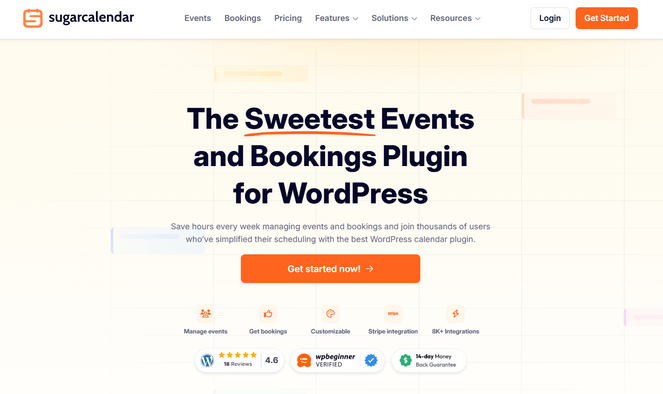
Sugar Calendar is my top pick for the best WordPress calendar plugin, and it’s easy to see why once you start using it.
Getting started is really simple. You don’t need to know anything about coding. Creating an event only takes a few clicks — just fill in your event details like the name, date, time, and location, and you’re done.
If you run a weekly class or a monthly meetup, you can set it to repeat daily, weekly, monthly, or annually so you only have to create it once. Sugar Calendar automatically adds all the future dates for you, which can save you a lot of time.
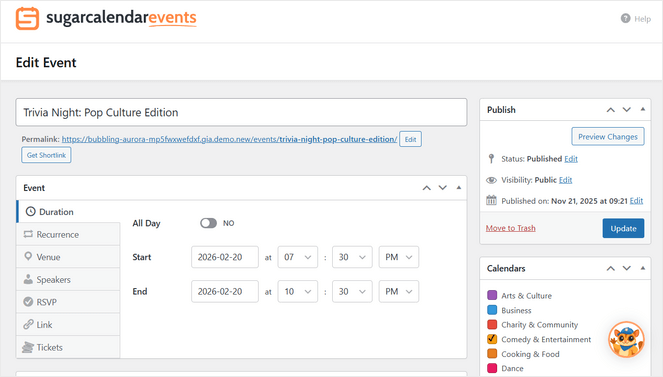
If you want to sell tickets or collect RSVPs, Sugar Calendar has you covered there too. You can create different ticket types — like General Admission, VIP, or Early Bird — each with its own price and limit on how many are available. Payments go through Stripe or WooCommerce, and you can keep track of who’s registered right from your WordPress dashboard.
There’s also a one-click calendar sync feature that lets your attendees save events straight to their Google, iCal, or Outlook calendars. It’s a small thing, but it goes a long way toward making sure people actually show up.
Once your events are ready, putting them on your site is just as easy. Just add the Events Calendar block to any post or page and your calendar is good to go. If you’ve ever added an image or a button in WordPress, you can do this.
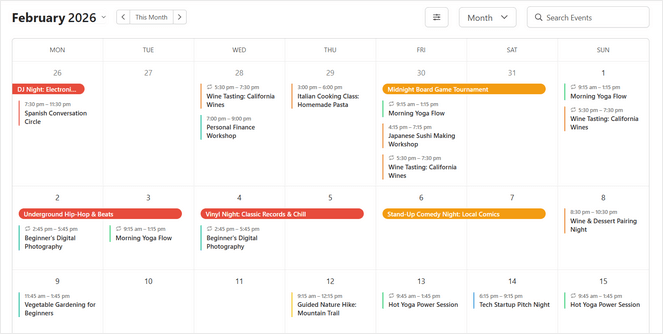
Your visitors can then switch between month, week, day, grid, and list views depending on what works best for them. And everything looks great on phones and tablets too, without you having to do anything extra.
Sugar Calendar also connects with popular tools like WPForms, Gravity Forms, and Formidable Forms if you want to collect more detailed registration info. And if you’re already using The Events Calendar, there’s a built-in tool that moves all your existing events over to Sugar Calendar in just one click.
| Pros of Sugar Calendar: | ✅ Super easy to set up — no coding needed ✅ Recurring events save you hours of manual work ✅ Automatically matches your WordPress theme’s style ✅ Collect RSVPs without needing a separate plugin or third-party tool ✅ Sell tickets with multiple pricing tiers through Stripe or WooCommerce ✅ One-click sync so attendees can save events to their personal calendars |
| Cons of Sugar Calendar: | ❌ The free version of Sugar Calendar is limited |
Pricing: Starts at $49.50 per year. There’s also a free version of Sugar Calendar with limited features.
Why I Recommend Sugar Calendar: If you want a calendar plugin that’s easy to set up, looks good right away, and gives you everything you need to manage events, RSVPs, and ticket sales in one place, Sugar Calendar is the one I’d go with. It’s simple enough for beginners but has plenty of power for more advanced needs
2. The Events Calendar: Best Calendar Plugin for Large Organizations
- Multiple calendar views
- Supports featured events, event series, and recurring events
- Event countdowns and live stream embed
- Option for users to subscribe to your calendar
- Developer-friendly code for customization
- Works with virtual and hybrid events
- And more…
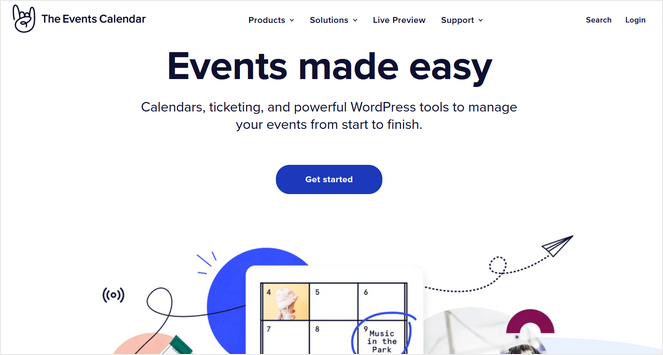
The Events Calendar is one of the most well-known WordPress calendar plugins out there, and with over 28 million downloads, it’s easy to see why so many bloggers and business owners trust it.
Creating events is quick and straightforward. You fill in the name, date, time, and description, and you’re good to go. If you’re running something like a weekly class or a multi-part workshop, you can set it up as a recurring event or group related dates together into a series so everything stays connected and easy to manage.
Keeping your calendar organized is easy too. You can use categories and tags to sort your events, which becomes really useful once your schedule starts to fill up. I really like this feature — it means visitors can quickly filter down to exactly the type of event they’re looking for instead of scrolling through everything.
From a visitor’s perspective, the experience is clean and easy to navigate. They can switch between different calendar views, search for specific events, see exactly where in-person events are being held on a built-in Google Map, and save anything they want to attend straight to their Google Calendar or iCal in one click.
For developers, there’s also a lot of flexibility built in. The plugin comes with plenty of hooks, filters, and template tags that make it easy to customize things further if you have someone technical on your team.
The one thing that gives me pause with The Events Calendar is the cost. Between the base plan and the addons you’ll probably need, it can get expensive compared to some of the other plugins on this list.
| Pros of The Events Calendar: | ✅ Can handle large-scale event operations ✅ Recurring events and event series keep related events organized ✅ Clean visitor experience with multiple calendar views ✅ Create Eventbrite tickets and events right from the WordPress dashbooard ✅ Scales easily as your event calendar grows |
| Cons of The Events Calendar: | ❌ Ticket sales and RSVPs require installing a separate plugin ❌ Costs can add up if you need several premium features |
Pricing: Starts at $149 per year. There’s also a limited free version available.
Why I Recommend The Events Calendar: If you’re running a high-volume event calendar and need a plugin that can keep up, The Events Calendar is the one I’d go with. It’s trusted by some of the biggest organizations in the world for a reason. Just go in knowing that some features like ticket sales and event imports will require extra addons.
3. My Calendar: Best WordPress Calendar Plugin for Accessibility

- Multiple calendar views
- Mini-calendar for compact displays
- Support for recurring events
- Event location management
- Design customization tools
- Built with accessibility in mind
- And more…
My Calendar is a solid, no-fuss calendar plugin that does what it says without a lot of extra complexity. If you’re new to WordPress or just need a straightforward way to display events on your site, it’s worth a look.
Adding events is simple. You fill in your event details, assign a category and location, set a date, and you’re done. You can also set events to repeat on a daily, weekly, or monthly schedule, which saves you from having to manually re-create the same event over and over again.
One thing I found that sets My Calendar apart from other plugins on this list is how much thought has gone into accessibility. Both the frontend that your visitors see and the backend that you manage are tested with assistive technology, so users who rely on screen readers or other tools can still navigate your calendar without any issues.
You can even add accessibility details directly to your events and venues — things like whether a location is wheelchair accessible — which I think is a really thoughtful feature that most calendar plugins don’t bother with.
Displaying your calendar is flexible too. You can add it to any post, page, or sidebar using a shortcode or widget, and there’s a handy shortcode generator built right into the plugin so you don’t have to remember any code.
There’s also a mini-calendar widget, which is great if you just want a compact version of your calendar sitting in a sidebar without taking up too much space.
| Pros of My Calendar: | ✅ Built with accessibility as a core focus ✅ Free calendar plugin ✅ Simple and beginner-friendly without a steep learning curve ✅ Supports recurring events ✅ Add calendars using widgets and shortcodes |
| Cons of My Calendar: | ❌ Not as polished or feature-rich as some other options on this list ❌ Ticket sales require a separate plugin |
Pricing: Free. There’s also a Pro plan that starts at $69 a year.
Why I Recommend My Calendar: My Calendar is a good pick for bloggers who want something simple and reliable, especially if accessibility matters to your audience. It’s not the most feature-packed plugin on this list, but it covers the basics well and doesn’t overcomplicate things.
4. Event Calendar by Timely: Best for Beautiful Calendars on a Budget
- Essential calendar views
- Multiple calendar themes and customization options
- Supports recurring events
- Built-in calendar search feature
- Color-coded categories for visual organization
- Optional pay-as-you-go features like event registration
- And more…
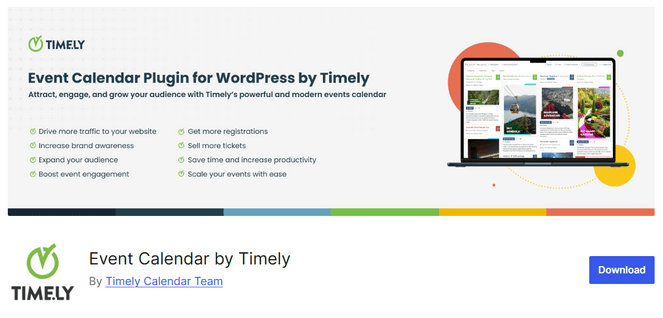
Event Calendar by Timely is a free WordPress calendar plugin that’s been around for a long time and has built up a following of over 150,000 users worldwide. It has a clean, modern design and is one of the better-looking calendar plugins I’ve come across.
Creating events works much like creating a blog post in WordPress. You fill in your event details, add images or videos, set a date and time, and assign a category.
You can color-code your categories too, which makes it easy for visitors to quickly tell different types of events apart at a glance. I think that’s a nice touch, especially if you run a variety of events and want your calendar to feel organized rather than overwhelming.
Once your events are live, visitors can browse them in month, week, or agenda views, search by keyword, and filter by category. They can also share events directly to social media or save them to their own Google Calendar, iCal, or Outlook.
That said, there are a few things I want to be upfront about before you decide. First, even though the plugin is free, you’ll need to create a Timely account and enter your credit card details just to get started, which is worth knowing ahead of time.
Second, the free plan limits you to 25 events, so if your calendar grows you’ll need to upgrade or regularly delete old events to stay within the limit.
Third, features like ticket sales and event registration are charged on a pay-as-you-go basis, so costs can add up depending on how much you use them.
| Pros of Event Calendar by Timely: | ✅ Clean, modern design that looks great right out of the box ✅ Professionally designed calendar themes included ✅ Color-coded categories make it easy for visitors to navigate a busy calendar ✅ Visitors can share events on social media or save them to their personal calendars ✅ Cloud-based so it won’t slow down your website |
| Cons of Event Calendar by Timely: | ❌ Requires creating a Timely account and entering credit card details just to use the free version ❌ Free plan is limited to 25 events ❌ Ticket sales and event registration come with extra per-transaction fees |
Pricing: Free for up to 25 events. Paid plans are available for more events and advanced features.
Why I Recommend Event Calendar by Timely: If you just need a good-looking calendar for a small number of events and don’t mind creating an account to get started, Event Calendar by Timely is worth a look. Just go in with a clear picture of the limitations so there are no surprises down the road.
5. Booking Calendar: Best Free Calendar Plugin for Accepting Bookings
- Easy-to-use calendar booking system
- Variety of customization options
- Option to accept full-day bookings
- Syncs with Google Calendar
- Multi-language support
- Import events from Airbnb, Booking.com, and TripAdvisor
- And more…
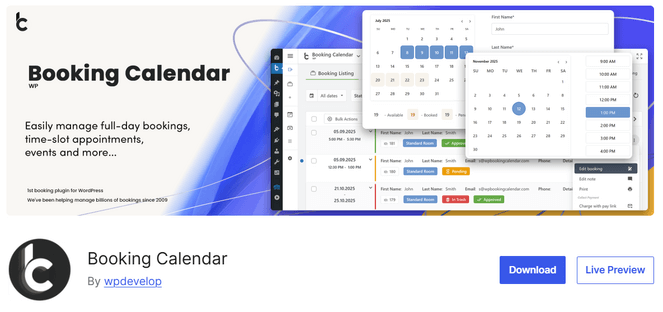
Booking Calendar is a little different from the other calendar plugins on this list. Rather than displaying events for visitors to browse, it’s built around letting people book time slots directly from your website.
I like how straightforward that process is, there’s no complicated setup or steep learning curve to get through before you can start using it.
Simply install the plugin, drop the shortcode into any page or post, and you’re ready to start accepting bookings. You can show your availability, let customers pick the time slots that work for them, and then approve or decline each booking from your dashboard.
It’s flexible enough to work for a wide range of use cases. If you offer a service like coaching or consulting, customers can book a specific time with you. If you manage a property like a vacation rental, they can check availability and book a stay. You can even import availability from Airbnb, Booking.com, and TripAdvisor, which is really handy if you’re already listing your property on those platforms.
And with Google Calendar sync built in, your bookings will automatically show up alongside the rest of your schedule.
In addition, on the design side, Booking Calendar comes with a range of customizable calendar styles so you can find something that fits your site without any extra work.
| Pros of Booking Calendar: | ✅ Simple to set up — just install and add a shortcode ✅ Flexible enough to work for services, appointments, and property rentals ✅ Email notifications for new appointments ✅ Responsive design on both the front and back end ✅ Integrates with other services like Google Calendar and Airbnb |
| Cons of Booking Calendar: | ❌ More focused on bookings than event display, so it may not be the right fit if you just need a calendar ❌ Some features like online payments require a paid upgrade |
Pricing: Free. There’s also a Pro version available, which starts at $41.87.
Why I Recommend Booking Calendar: If you need a simple, reliable way to let visitors book appointments or check availability directly on your site, Booking Calendar gets the job done without overcomplicating things. It’s not the right fit if you’re looking for a traditional event calendar, but for bookings and availability management it’s one of the easiest options out there.
Alternative: Sugar Calendar Bookings
6. EventON: Best Calendar Plugin for Information-Rich Events
- Multiple modern calendar display layout styles
- Add comprehensive event details
- Various sorting, filtering, and searching features
- Interactive calendar maps
- Built-in social sharing for popular platforms
- AI-powered content generation
- And more…
Most calendar plugins give you the basics — a title, a date, a location, and maybe an image. EventON goes a lot further than that. If you run events where the content really matters, it’s one of the most feature-rich options I’ve come across.
To create an event, you can fill in your event details using the familar WordPress block editor, add images, assign a location, and set a date and time.
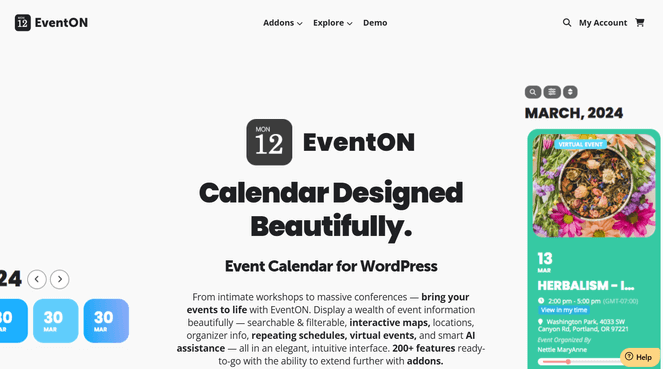
But, what I really like is how much detail you can pack into each event — you can add image galleries, organizer information, interactive Google Maps, FAQ sections, and more, all without it feeling messy or overwhelming to visitors.
On the display side, you have a lot of choices. You can show your events as a traditional calendar grid, a list, tiles, or a schedule view, and visitors can switch between months without the page reloading, which makes for a really smooth browsing experience.
There’s also sorting, filtering, and a search feature so visitors can quickly find exactly what they’re looking for.
One feature worth calling out is the AI-powered content generation, which can help you write event descriptions and suggest tags and categories automatically. It’s a newer addition but a genuinely useful one if you’re regularly creating a lot of events and want to save some time.
| Pros of EventON: | ✅ Rich event details including galleries, FAQs, interactive maps, and more ✅ Works great for complex events like conferences and multi-session workshops ✅ Highly flexible calendar display options ✅ Smooth, fast browsing experience with AJAX-powered month navigation ✅ AI tools help you write event content faster |
| Cons of EventON: | ❌ Can be overkill if you just need a simple calendar ❌ The free version is quite limited compared to the full paid version ❌ Advanced features like ticket sales and RSVPs require paid add-ons |
Pricing: Starts at $40 (one-time payment) and addons can be purchased for anywhere from $30-$120+ per year. There’s also a limited free version available.
Why I Recommend EventON: EventON is a solid pick if your events have a lot of moving parts and you want visitors to have all the information they need in one place. It handles the details better than most plugins, and if you’re regularly publishing complex events, the AI tools alone can save you a decent amount of time.
7. Simple Calendar – Google Calendar Plugin: Best for Displaying Basic Google Calendars
- Displays events from any public Google Calendar
- Various calendar designs
- Mobile-friendly monthly grid and list views
- Option to combine multiple calendars
- Time zone support
- And more…
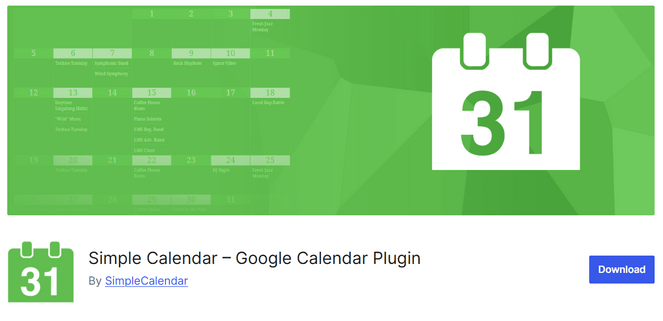
Simple Calendar is the last plugin on this list, and it fills a very specific need — if you already manage your events in Google Calendar and just want them to show up on your WordPress site automatically, this is the plugin for you.
When I tested it, I found the setup is about as easy as it gets. Just connect your Google Calendar, drop a shortcode into any page or post, and your events will appear on your site.
From that point on, you never have to touch WordPress to update your calendar, just keep adding and editing events in Google Calendar like you normally would, and your website stays up to date automatically.
You can also combine multiple Google Calendars into a single display, which is handy if you have different calendars for different types of events and want them all showing in one place on your site. Time zone support is built in too, so events always display at the correct local time for your visitors.
I like that Simple Calendar comes with clean, responsive designs that work well on mobile and desktop without any extra setup. Plus, the calendar automatically matches your theme’s look and feel, which means you don’t have to spend time making it fit your site.
| Pros of Simple Calendar: | ✅ Syncs automatically with Google Calendar, no need to manage events in WordPress ✅ Incredibly quick and easy to set up ✅ Combine multiple Google Calendars into a single display ✅ Time zone support so events always show at the right local time ✅ Automatically matches your WordPress theme‘s style |
| Cons of Simple Calendar: | ❌ Only works with Google Calendar — not a good fit if you use a different calendar tool ❌ You can’t create or edit events from within WordPress ❌ Advanced features require purchasing addons |
Pricing: Free. Premium version starts at $99 per year.
Why I Recommend Simple Calendar: Simple Calendar is a good fit if you’re already using Google Calendar and just want your events to show up on your site without any extra work. If that’s not you, one of the other plugins on this list will probably serve you better.
What is the Best Calendar Plugin for WordPress?
If you’re looking for one calendar plugin that does it all, Sugar Calendar is the one I’d go with. It’s easy to set up, looks great out of the box, and handles everything from recurring events to ticket sales and RSVPs in one place.
There’s a free version of Sugar Calendar if you want to try it out first, and paid plans start at $49 per year if you need more features. It’s also backed by the same team behind WPForms, which says a lot about the quality and support you can expect.
If you’re running a large organization with a heavy event schedule and a bigger budget, The Events Calendar is worth a serious look. It has the depth and the track record to handle a high volume of events, and it’s trusted by some of the biggest institutions in the world.
And if you already manage your events in Google Calendar and just want them to show up on your site automatically, Simple Calendar makes that easier than any other plugin on this list — and it’s completely free.
FAQs About WordPress Calendar Plugins
Still have questions? Here are my answers to the most common questions our readers ask about calendar plugins:
Does WordPress have a built-in calendar?
No, WordPress doesn’t come with a built-in calendar. To add one to your site, you’ll need to install a calendar plugin. The good news is that there are plenty of great options to choose from, including several free ones on this list.
What’s the difference between a calendar plugin and a booking plugin?
A calendar plugin is primarily for displaying events so visitors can see what’s coming up. A booking plugin, like Booking Calendar, is focused on letting visitors reserve a time slot or appointment directly from your site. Some plugins do both, but it’s worth knowing which one you actually need before you choose.
Can I sell tickets to events through a WordPress calendar plugin?
Yes, but not every plugin supports it out of the box. Sugar Calendar and EventON both handle ticket sales natively. Others, like The Events Calendar, require a separate plugin to do it. Before you commit to a plugin, check whether ticketing is built in or if it requires an extra addon.
What is the best free WordPress calendar plugin?
Sugar Calendar has a free version that’s a solid starting point — you can create events, display a calendar on your site, and get up and running without spending anything. The Events Calendar and My Calendar also have free versions worth looking at, though most free calendar plugins have limitations and you’ll likely need to upgrade at some point as your needs grow.
Can I use more than one calendar plugin at the same time?
Technically yes, but it’s generally not a good idea. Running multiple calendar plugins can cause conflicts and slow down your site. It’s better to find one plugin that covers everything you need rather than stacking multiple ones on top of each other.
That’s a wrap! These are the best WordPress calendar plugins for managing your events, staying organized, and boosting ticket sales. Now, you can make an informed decision about which is the perfect WordPress calendar plugin for your blog.
If you liked this post, feel free to check out our guide on the best WordPress plugins for bloggers. It has a full list of everything you need to get started. Or, you may want to check out our tutorial on how to create a content calendar in WordPress for planning blog posts.
And don’t forget to sign up for our email newsletter for more helpful blogging tips!
Great article with an excellent idea!